Microsoft 365 Copilot at Work: The Definitive Guide

How Executives and Professionals Can Use Copilot to Work Smarter, Communicate Better, and Accelerate Decision-Making
Microsoft 365 Copilot represents one of the most important shifts in modern knowledge work.
For years, productivity tools helped us create documents, send emails, build presentations, analyze spreadsheets, and collaborate in meetings. But the work still required us to manually search, summarize, rewrite, organize, analyze, and connect information across multiple applications.
Microsoft 365 Copilot changes that.
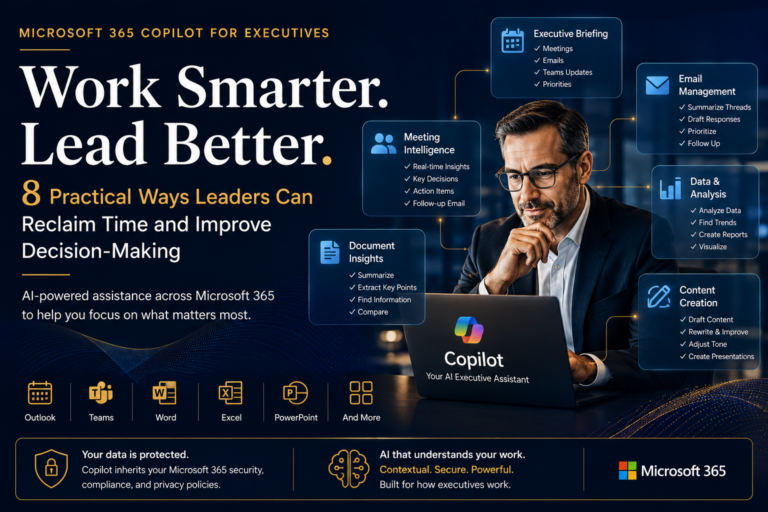
By embedding generative AI directly into the tools professionals already use every day — Word, Excel, Outlook, Teams, PowerPoint, OneNote, OneDrive, SharePoint, and Microsoft 365 Chat — Copilot acts as an AI-powered work assistant that helps users create, summarize, analyze, communicate, and collaborate with greater speed and clarity. For executives, managers, consultants, legal professionals, finance teams, project managers, sales teams, and knowledge workers, Copilot is not just another productivity feature. It is a new way of working.
This guide explains what Microsoft 365 Copilot is, how it works, where it creates value, how to prompt it effectively, and how organizations can onboard users responsibly.
What Is Microsoft 365 Copilot?
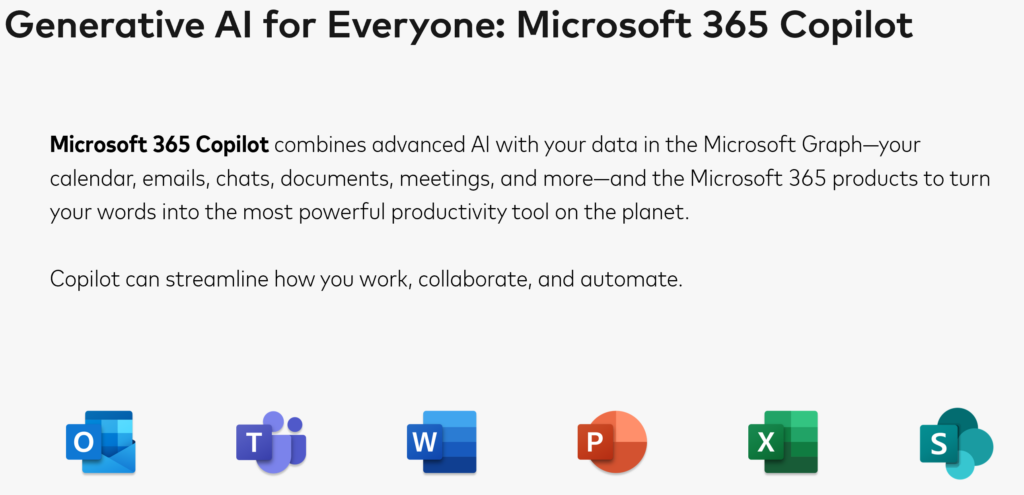
Microsoft 365 Copilot is an AI assistant integrated across the Microsoft 365 ecosystem. At its core, Copilot brings together three major components:
- Large language models
These are the AI models that understand prompts, generate text, summarize information, analyze content, and produce responses. - Microsoft Graph and organizational context
Copilot can work with the information users already have permission to access, such as emails, meetings, calendars, chats, documents, files, notes, and SharePoint content. - Microsoft 365 applications
Copilot is available inside familiar productivity tools such as Outlook, Teams, Word, PowerPoint, Excel, OneNote, OneDrive, and Microsoft 365 Chat.
In simple terms:
Microsoft 365 Copilot is generative AI grounded in your work context.
That distinction matters.
A generic chatbot can answer broad questions. Copilot can help answer work-specific questions, summarize internal content, draft communications, analyze files, prepare for meetings, and reduce the manual effort required to move between applications.
Copilot Is Not Autopilot
One of the most important concepts to understand is this:
It is called Copilot, not Autopilot.
Copilot is designed to assist, accelerate, and augment human work. It is not designed to replace human judgment.
Copilot can help create a first draft, summarize a long thread, identify action items, generate a presentation, or analyze spreadsheet trends. But the user still needs to review, validate, refine, and approve the final output.
This is especially important for executives and professionals working with sensitive topics, strategic decisions, legal language, financial analysis, customer communication, or regulated content.
Copilot is most effective when treated as a collaborative assistant — not an unquestioned authority.
How Microsoft 365 Copilot Works
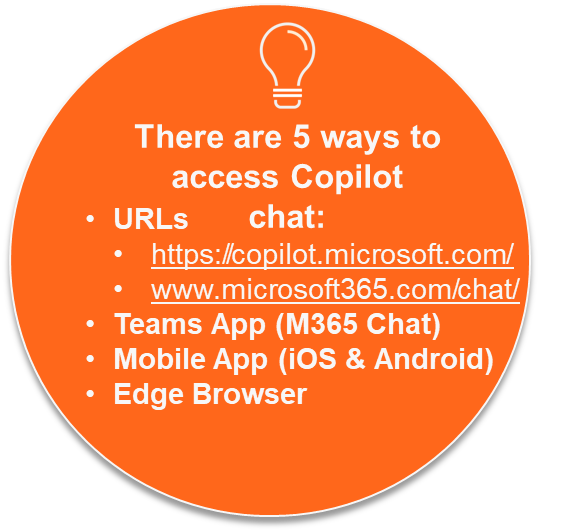
A typical Copilot interaction follows a simple flow:
- You enter a prompt or question.
- Copilot interprets your request.
- It gathers relevant context based on the application and your permissions.
- It sends the prompt and context to the AI model.
- The AI generates a response.
- Copilot returns the output inside the application you are using.
For example:
- In Outlook, Copilot can summarize an email thread or draft a reply.
- In Teams, it can summarize a meeting and extract action items.
- In Word, it can draft, rewrite, or summarize a document.
- In Excel, it can help analyze data, generate formulas, and create charts.
- In PowerPoint, it can turn a document into a presentation.
- In Microsoft 365 Chat, it can search across your work context and help synthesize information.
The key architectural principle is permission-based grounding.
Copilot can only access information the user already has permission to access. If a user cannot access a file, mailbox, SharePoint site, or Teams conversation, Copilot will not expose content that the user does not already have access to.
Work Mode vs Web Mode
A critical concept for Copilot users is the difference between Work Mode and Web Mode.
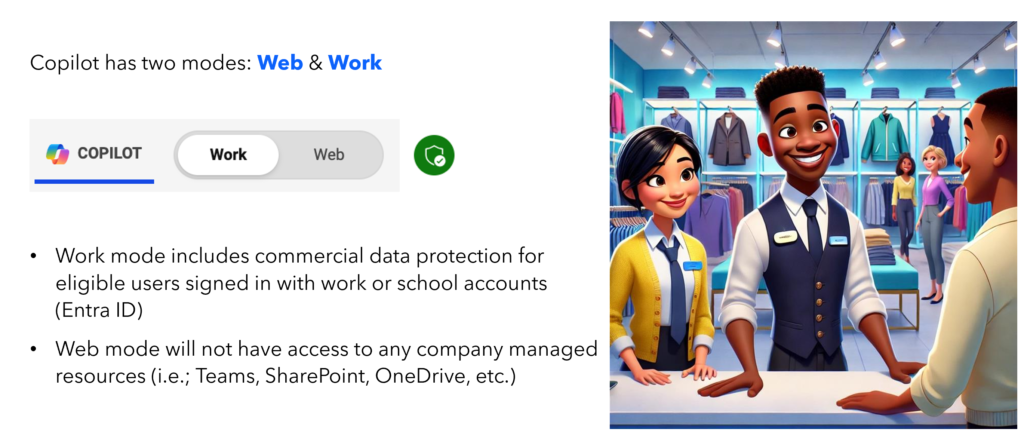
Work Mode
Work Mode is designed for organizational productivity. It can use enterprise context such as:
- Emails
- Meetings
- Chats
- Files
- SharePoint content
- OneDrive documents
- Calendar information
- Organizational knowledge
This is the mode most professionals should use when working with internal business content.
Web Mode
Web Mode is designed for public web-based information. It does not use your internal Microsoft 365 organizational data. It is useful for general research, public knowledge, external explanations, and broad market context.
Why This Matters
Choosing the right mode affects output quality.
If your task requires internal context, use Work Mode.
If your task requires public research or general external knowledge, use Web Mode.
For executives and professionals, this distinction is important because it determines whether Copilot is answering from public information, your internal work context, or a combination of available sources depending on the tool and configuration.
Core Benefits of Microsoft 365 Copilot
Microsoft 365 Copilot can create value in multiple ways.
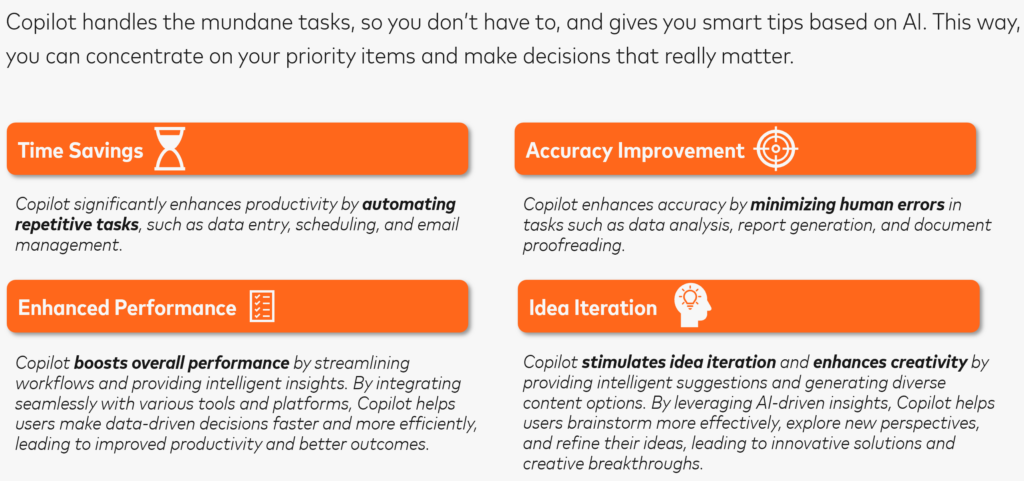
1. Time Savings
Copilot can reduce time spent on repetitive tasks such as:
- Summarizing email threads
- Drafting responses
- Preparing meeting notes
- Creating first drafts
- Reviewing documents
- Generating presentation outlines
- Searching across information
2. Improved Communication
Copilot helps users write more clearly, adjust tone, summarize complex content, and tailor messages for different audiences. This is especially useful for executives, managers, client-facing professionals, and cross-functional teams.
3. Better Meeting Productivity
Copilot can summarize meetings, list action items, identify decisions, and help users catch up on missed conversations. This helps reduce meeting follow-up friction and improves accountability.
4. Faster Content Creation
Copilot can generate first drafts of reports, proposals, meeting agendas, executive summaries, presentations, policies, and communications. The goal is not to publish the first draft unchanged. The goal is to accelerate the starting point.
5. Better Decision Support
Copilot can help summarize information, compare options, analyze data, extract risks, and organize insights. When used well, it reduces the time required to move from information overload to actionable understanding.
Co-pilot User Interface Overview
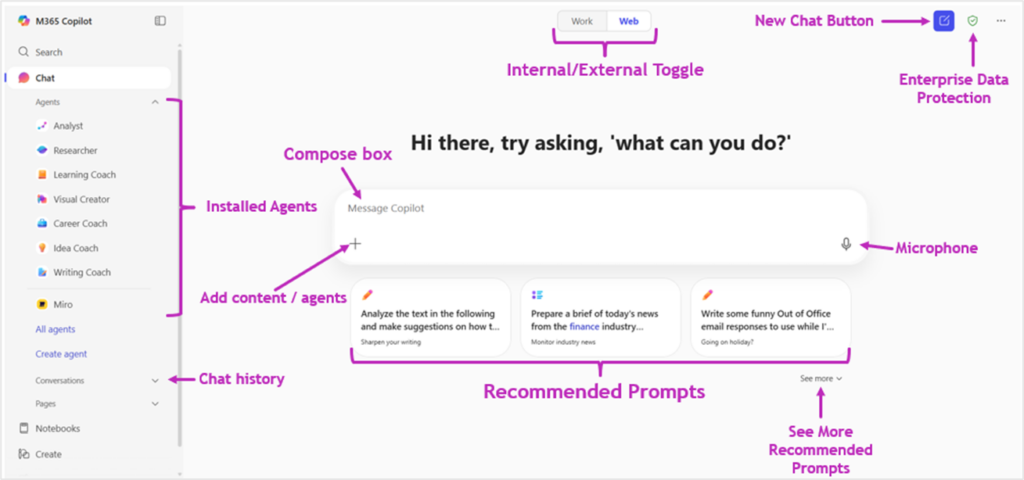
Work vs Web Mode
Work Mode uses your organizational data such as emails, meetings, Teams chats, OneDrive, and SharePoint content. Web Mode uses public internet data and is best for external research and general knowledge queries.
Compose Box
The compose box is where users interact with Copilot using natural language prompts. Clear, contextual prompts dramatically improve the quality and relevance of responses.
Add Context / Attach Content
Users can attach documents, spreadsheets, presentations, notes, and files to ground Copilot responses in actual business content. Adding context significantly improves output quality and accuracy.
Installed Agents
Copilot supports specialized AI agents such as Researcher, Analyst, Writing Coach, and Learning Coach. These agents are optimized for focused workflows like research, data analysis, writing improvement, and productivity assistance.
Chat History
Copilot stores conversation history to support continuity and personalization across workflows. Starting a new chat when changing topics helps improve context accuracy and response quality.
Recommended Prompts
Copilot surfaces suggested prompts to help users discover useful workflows and prompting patterns. These recommendations accelerate onboarding and improve adoption for new users.
Enterprise Data Protection
When signed in with a work account, Copilot operates within enterprise-grade security and compliance boundaries. Responses are grounded in your existing permissions and organizational access controls.
New Chat Button
The New Chat button resets context and starts a fresh conversation. This is a best practice when switching between projects, tasks, or unrelated topics.
Microphone / Voice Input
Voice input allows users to interact with Copilot conversationally using speech instead of typing. This is especially useful for mobile workflows, brainstorming, and accessibility scenarios.
Notebooks
Notebooks provide persistent AI-powered workspaces for organizing prompts, files, instructions, and project context. They are especially useful for long-term initiatives, research, legal reviews, and collaborative workflows.
Researcher Agent
Researcher is optimized for external and multi-source research workflows. It can synthesize trends, regulations, market insights, and structured reports with sources and citations.
Analyst Agent
Analyst is designed for internal file and data analysis using spreadsheets, contracts, reports, and datasets. It helps identify trends, risks, outliers, and visual insights from uploaded files.
Practical Tip for New Users
A simple mental model helps explain the interface:
| Interface Area | Purpose |
|---|---|
| Compose Box | Ask questions and issue prompts |
| Work/Web Toggle | Choose organizational vs public context |
| Agents | Specialized AI assistants |
| Chat History | Maintain continuity |
| Add Context | Ground prompts in files and data |
| Recommended Prompts | Learn prompting patterns |
| Notebooks | Persistent project workspaces |
The Most Important Skill: Prompting
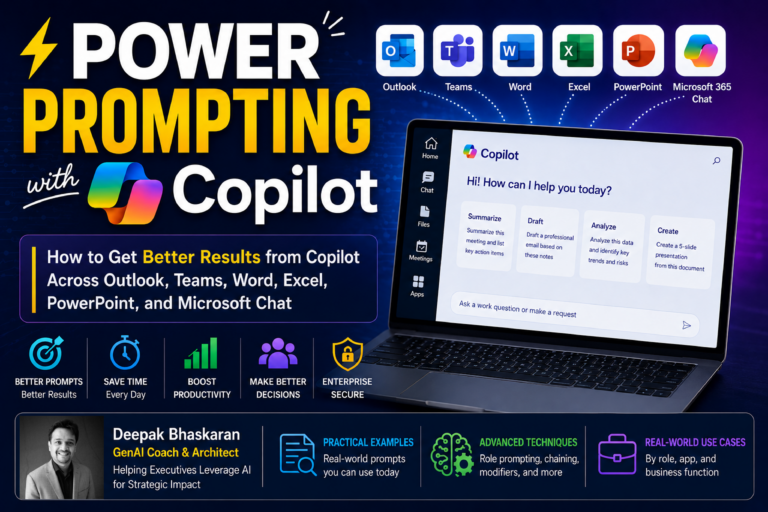
The quality of Copilot’s output depends heavily on the quality of the prompt.
A weak prompt produces a weak response.
A clear, contextual prompt produces a much better output.
Prompting is not about tricking AI. It is about communicating clearly.
A Simple Prompting Framework
A strong Copilot prompt usually includes four ingredients:
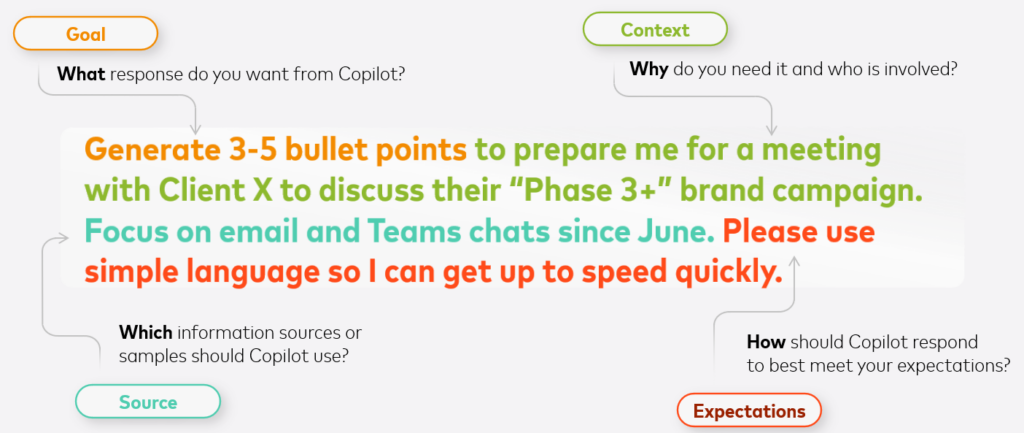
1. Role
Tell Copilot what role to assume.
Example:
Act as an executive communications advisor.
2. Context
Explain the situation, audience, objective, or business need.
Example:
I am preparing a message for senior leaders about the status of a transformation program.
3. Source
Tell Copilot what content, file, email thread, meeting, spreadsheet, or notes to use.
Example:
Use the notes from this meeting and the attached project status report.
4. Expectations
Specify the output format, tone, length, and structure.
Example:
Create a concise executive summary in five bullet points with risks, decisions, and recommended next steps.
Weak Prompt vs Strong Prompt
Weak Prompt
Summarize this document.
Strong Prompt
Summarize this document into five executive-level bullet points. Focus on risks, recommendations, open decisions, and next steps. Use a concise and professional tone suitable for a senior leadership audience.
The second prompt is more effective because it tells Copilot:
- What to do
- Who the audience is
- What to focus on
- What format to use
- What tone to apply
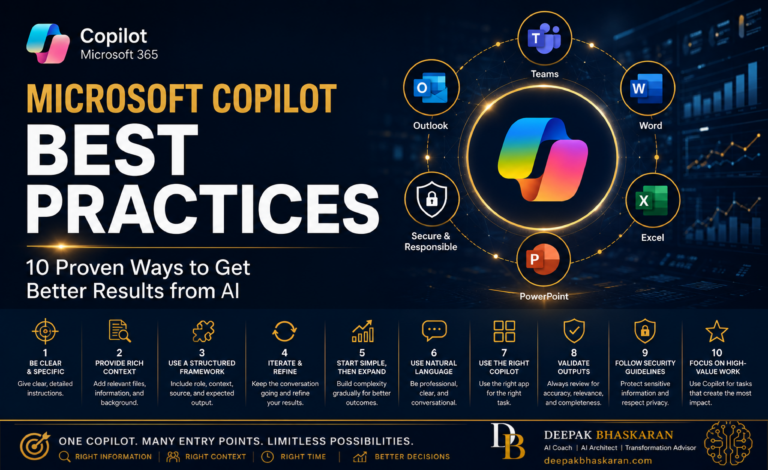
Prompting Best Practices
To get better results from Copilot:
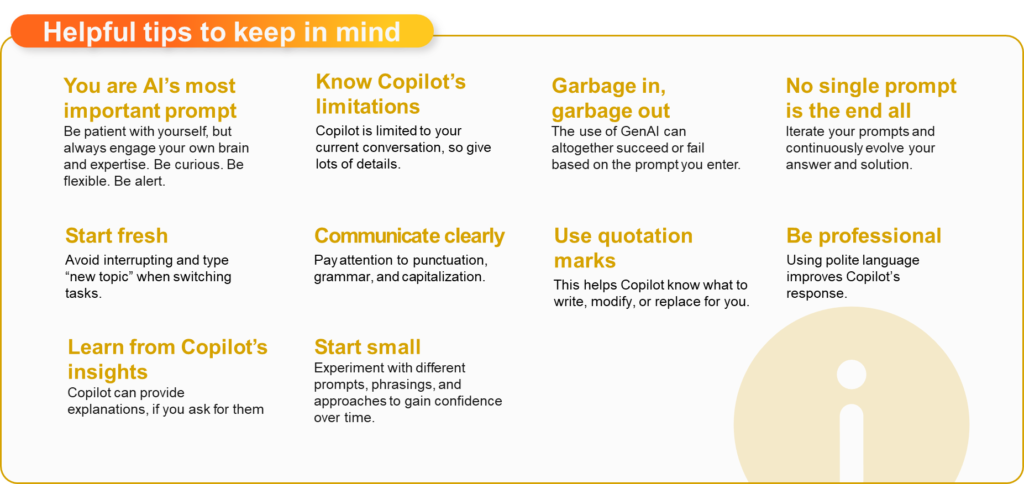
- Be specific.
- Provide context.
- Define the audience.
- Specify the format.
- Ask for tables when comparing options.
- Ask for bullets when scanning quickly.
- Ask for executive tone when communicating upward.
- Use follow-up prompts to refine the answer.
- Start a new chat when switching topics.
- Always review the output before using it.
The most effective users treat prompting as a conversation, not a one-time command.
Microsoft 365 Chat: Your AI Command Center
Microsoft 365 Chat acts as an AI-powered command center across your work context.
It can help you:
- Summarize emails, chats, and documents.
- Catch up after time away.
- Prepare for meetings.
- Find information across Microsoft 365.
- Draft content using work context.
- Brainstorm ideas.
- Ask questions about projects, people, or documents.
Example Prompts
Summarize my emails, Teams messages, and channel messages from last week. List action items in a table.
What are the latest updates on Project X? Include risks, decisions, and next milestones.
Prepare me for my meeting with the product team by summarizing relevant emails, documents, and recent chats.
Create a planning overview using the timeline from this file and the project list from this email.
Best Uses
Microsoft 365 Chat is especially useful for:
- Catching up quickly
- Preparing for meetings
- Synthesizing information across sources
- Reducing context switching
- Creating first drafts grounded in work context
Copilot in Outlook
Outlook is one of the fastest places to realize Copilot value because email remains a major source of daily work friction.
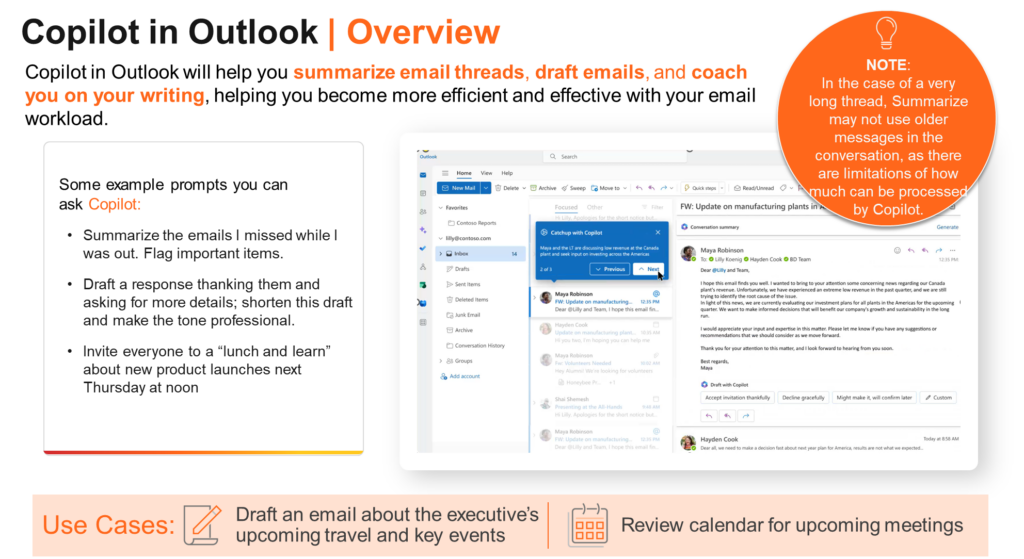
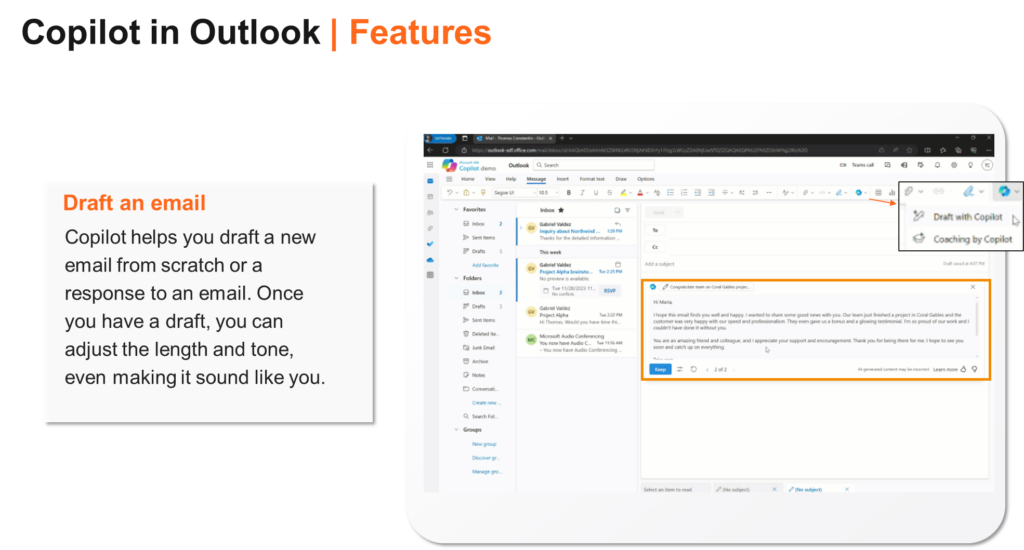
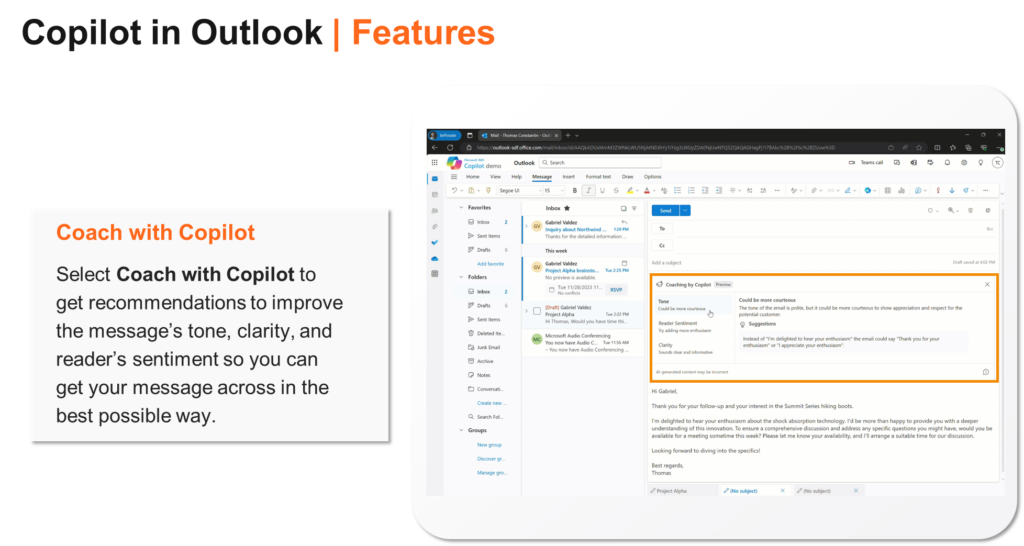
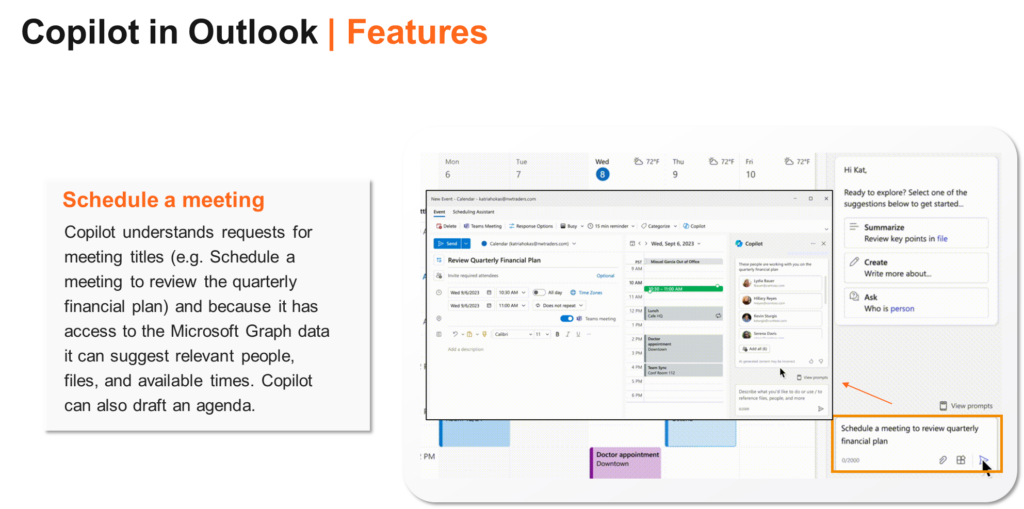
Copilot in Outlook can help users:
- Summarize long email threads

- Draft new emails

- Reply to messages
- Adjust tone and clarity

- Identify action items
- Help schedule meetings

- Triage inbox overload
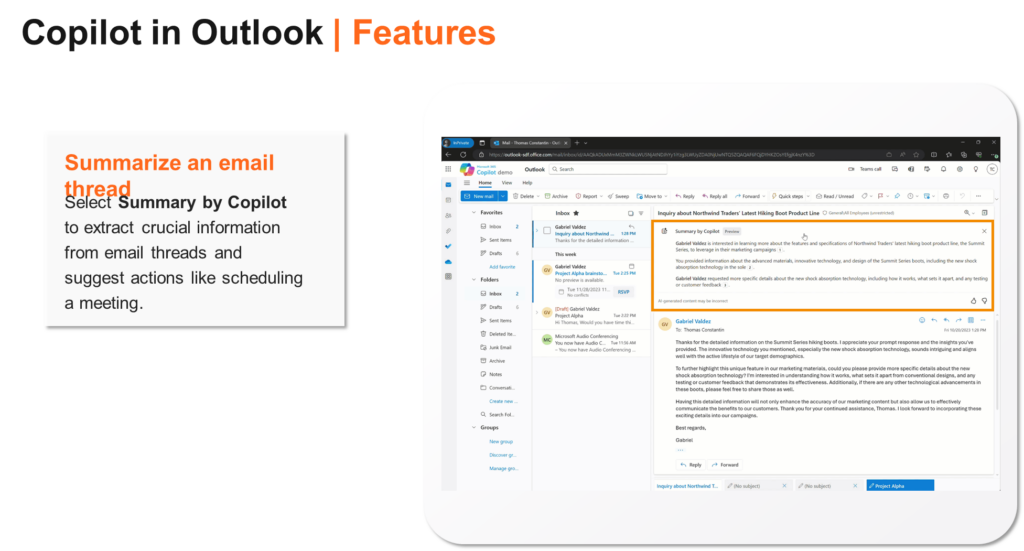
Example Prompts
Summarize this email thread in three bullet points and identify any action items.
Draft a professional response thanking the sender and asking for more details.
Rewrite this email to be more concise and executive-ready.
Summarize all unread emails from today and flag anything urgent.
Draft a follow-up email based on the notes below.
Executive Use Case
An executive can use Copilot in Outlook to quickly summarize priority emails, draft responses, and prepare follow-ups before moving into meetings.
Copilot in Teams
Teams is where much of modern work happens — meetings, chats, channels, decisions, and collaboration.
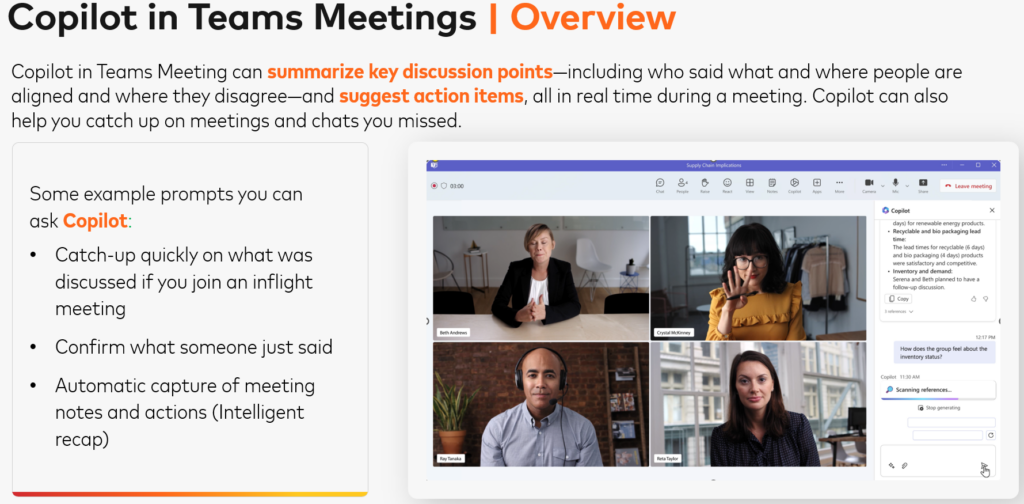
Copilot in Teams can help users:
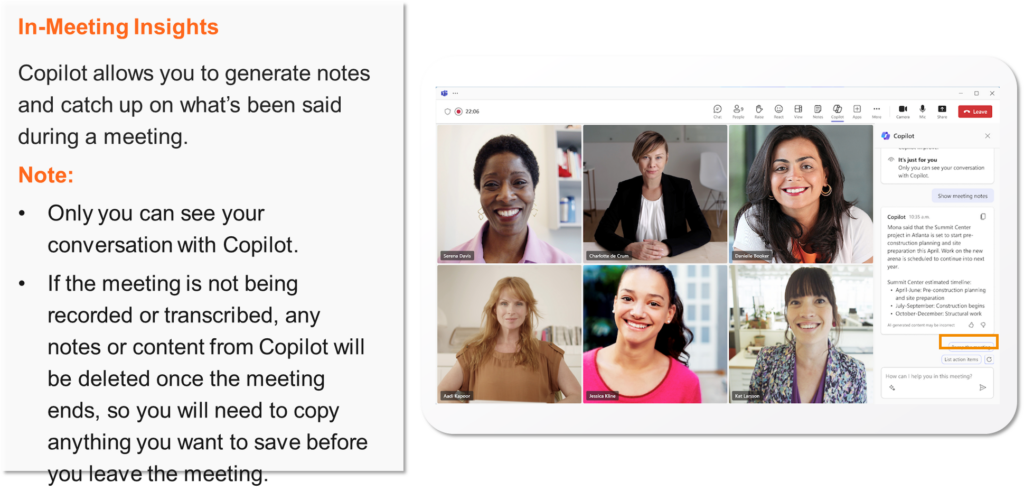
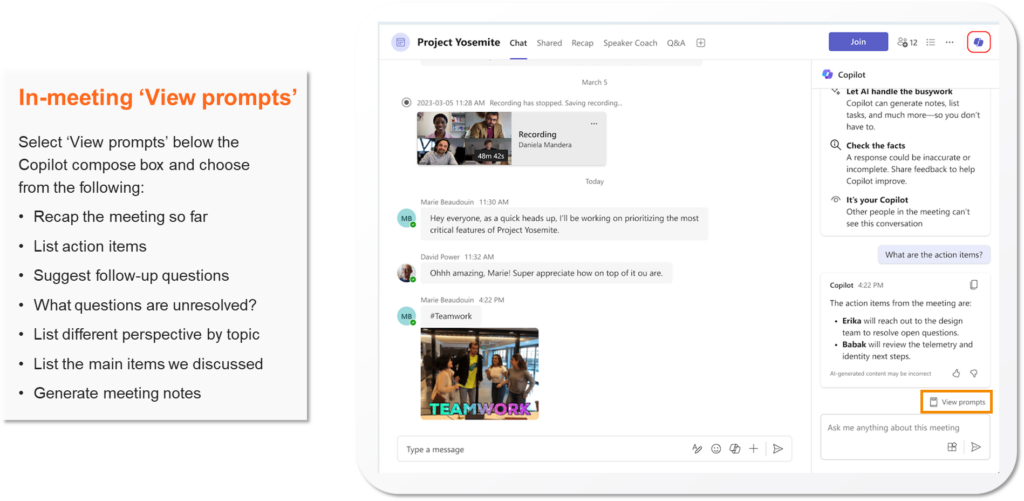
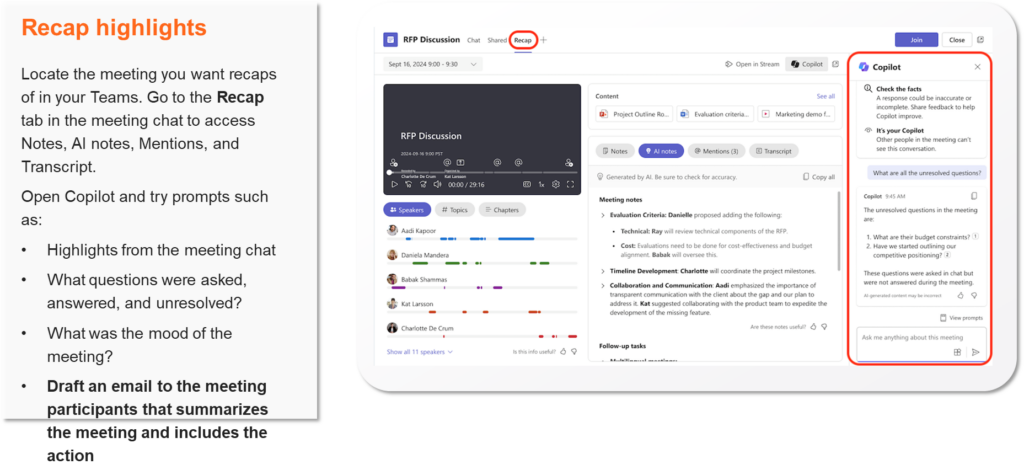
- Summarize meetings
- Capture action items
- Identify key decisions
- Catch up on missed meetings
- Summarize chat threads
- Highlight unresolved questions
- Draft follow-up messages
Example Prompts
Summarize the meeting and list all action items with owners.
What decisions were made during this meeting?
What questions were asked but not answered?
Summarize the discussion about the project timeline.
Draft a follow-up message to meeting participants with key decisions and next steps.
Meeting Best Practice
Before recording or transcribing meetings, organizations should follow their policies, obtain appropriate consent, and avoid recording sensitive discussions when inappropriate.
Practical Tip
If a meeting is not recorded or transcribed, some Copilot-generated meeting context may not be available after the meeting ends. Users should copy important notes or summaries before leaving when needed.
Copilot in Word
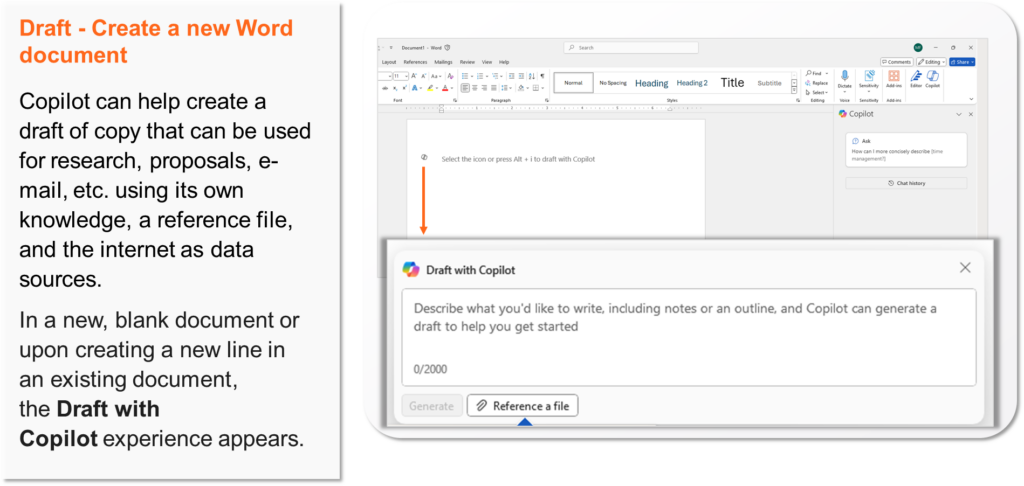
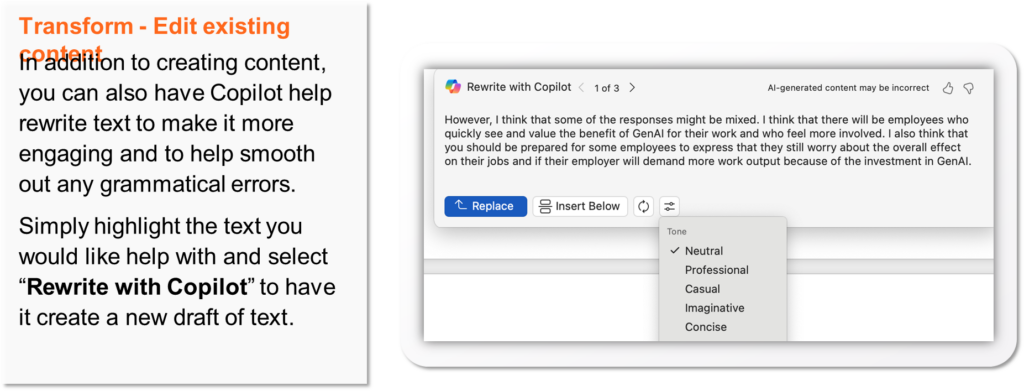
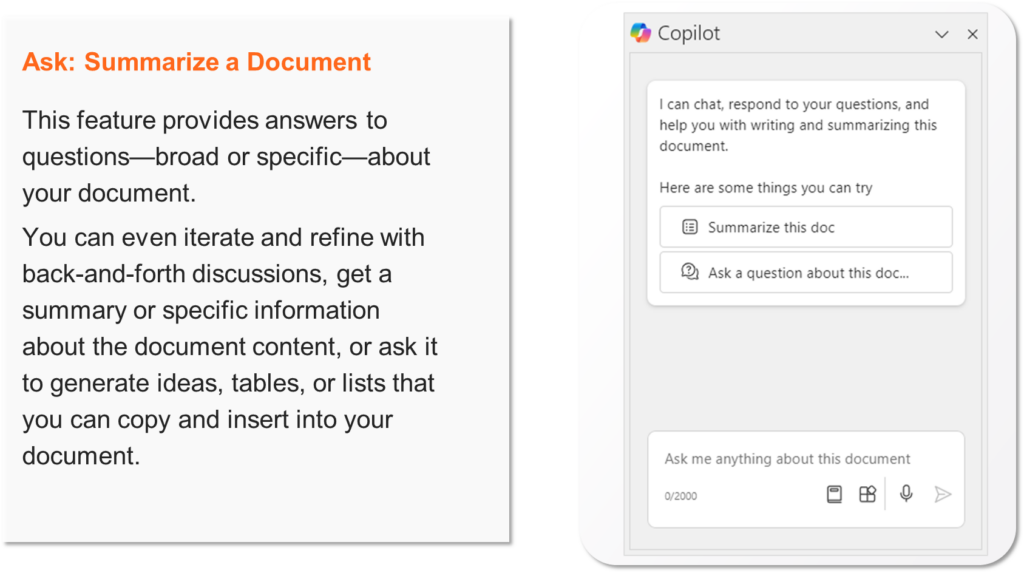
Copilot in Word can act as a writing assistant, editor, summarizer, and document analyst.
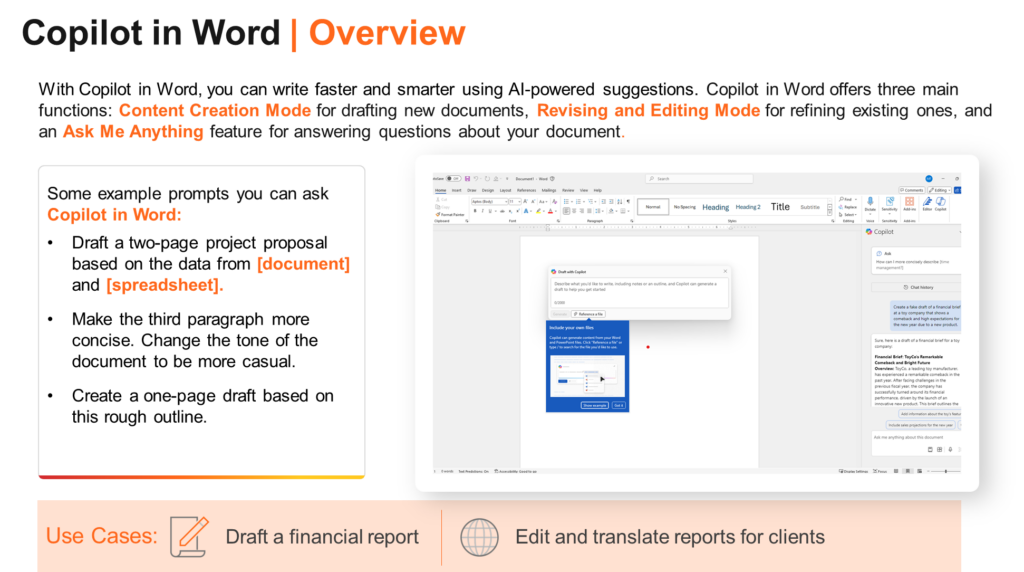
It can help with:
- Drafting documents
- Rewriting sections
- Changing tone
- Summarizing long documents
- Creating executive summaries
- Extracting action items
- Organizing content
- Improving clarity and flow
Example Prompts
Draft a two-page project proposal based on this outline.
Summarize this document in five bullet points for an executive audience.
Rewrite this section to be more concise and professional.
Identify unclear sections and suggest improvements.
Create a one-page executive summary of this report.
Best Uses
Copilot in Word is especially valuable for:
- Proposals
- Reports
- Policies
- Meeting summaries
- Executive briefings
- Project documentation
- Memos
- Training content
Important Limitation
Copilot can accelerate writing, but it does not replace subject matter expertise. Legal, financial, medical, technical, or regulated content still requires expert review.
Copilot in PowerPoint
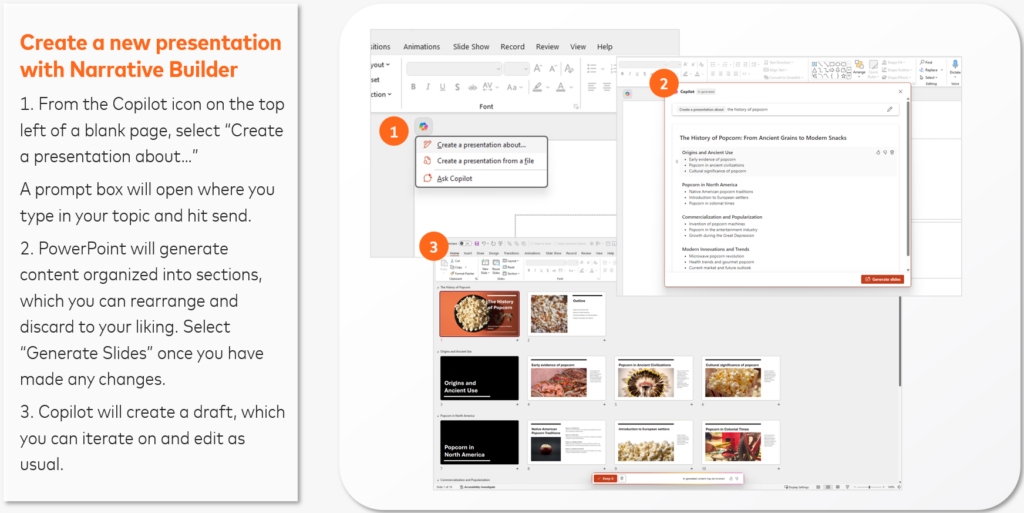
Copilot in PowerPoint helps users move from raw content to structured presentations faster.
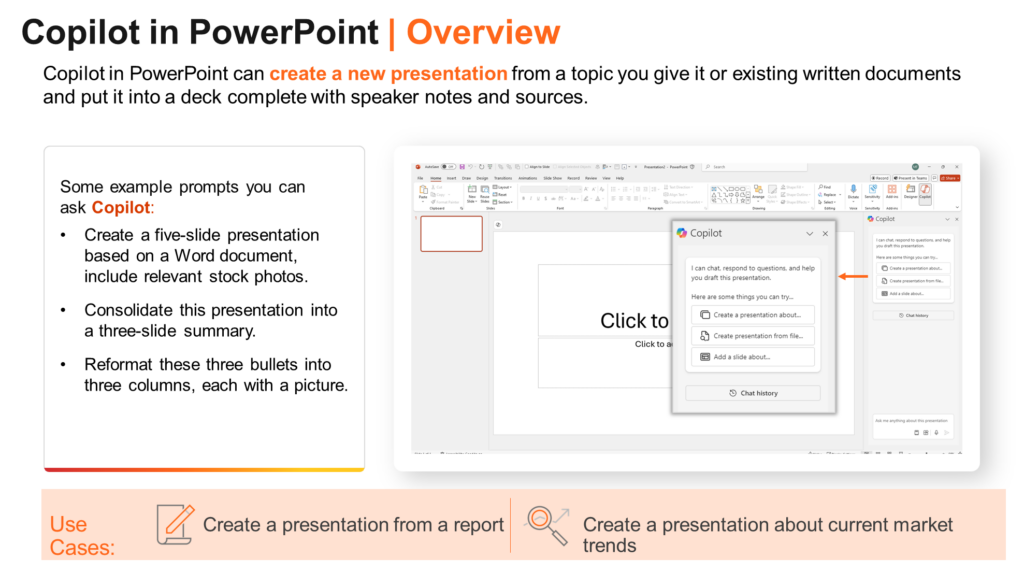
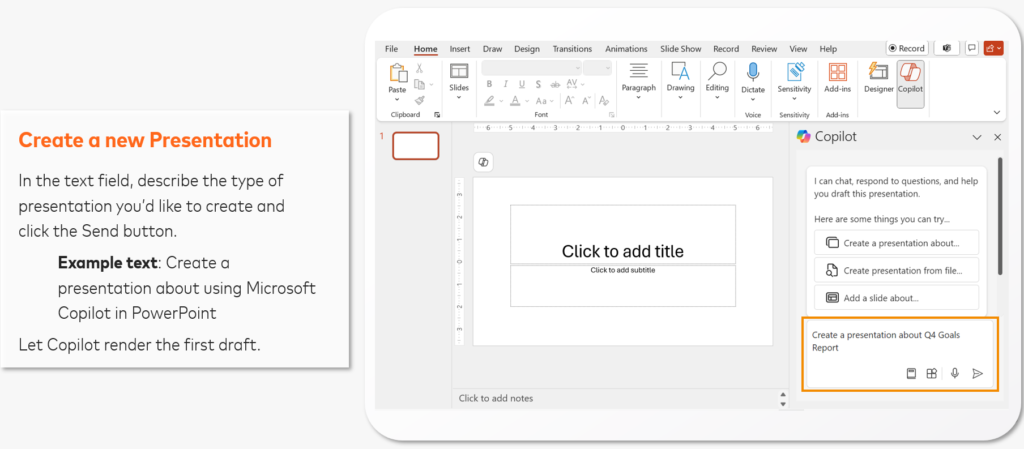
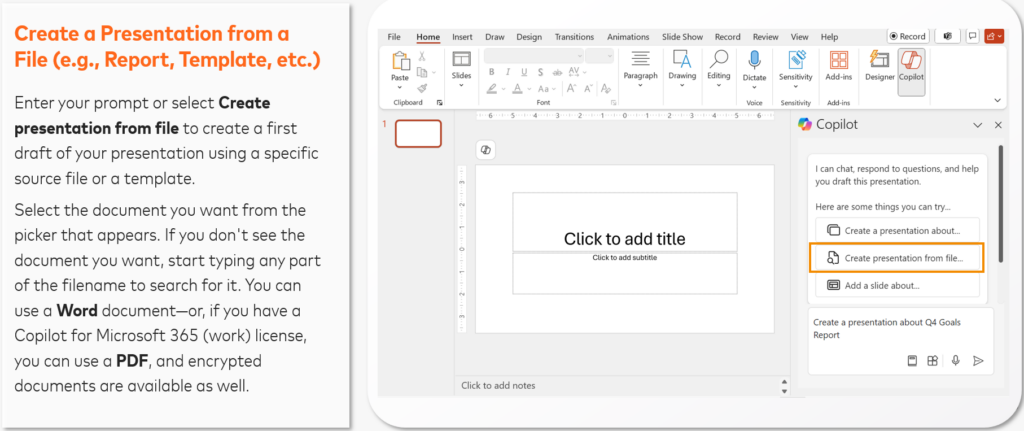
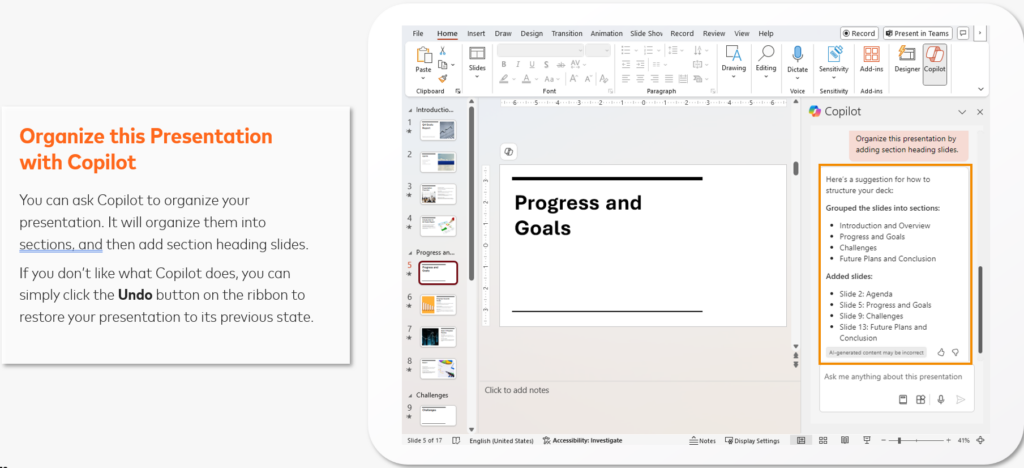
It can help:
- Create presentations from prompts
- Create presentations from Word documents
- Summarize decks
- Generate speaker notes
- Organize slides into sections
- Suggest better structure
- Create executive summary slides
- Improve slide content
Example Prompts
Create a five-slide presentation from this Word document.
Turn this report into a client-ready presentation.
Add speaker notes to each slide.
Reorder these slides for better flow.
Create an executive summary slide for this presentation.
Generate a FAQ based on the content in this deck.
Executive Use Case
A leader can use Copilot to convert a strategy memo into a leadership presentation, then refine the narrative, visuals, and speaker notes manually.
Practical Tip
Start with a branded PowerPoint template when possible. Copilot can accelerate presentation creation, but users should still expect to refine design, structure, and messaging.
Copilot in Excel
Copilot in Excel helps users analyze data using natural language.
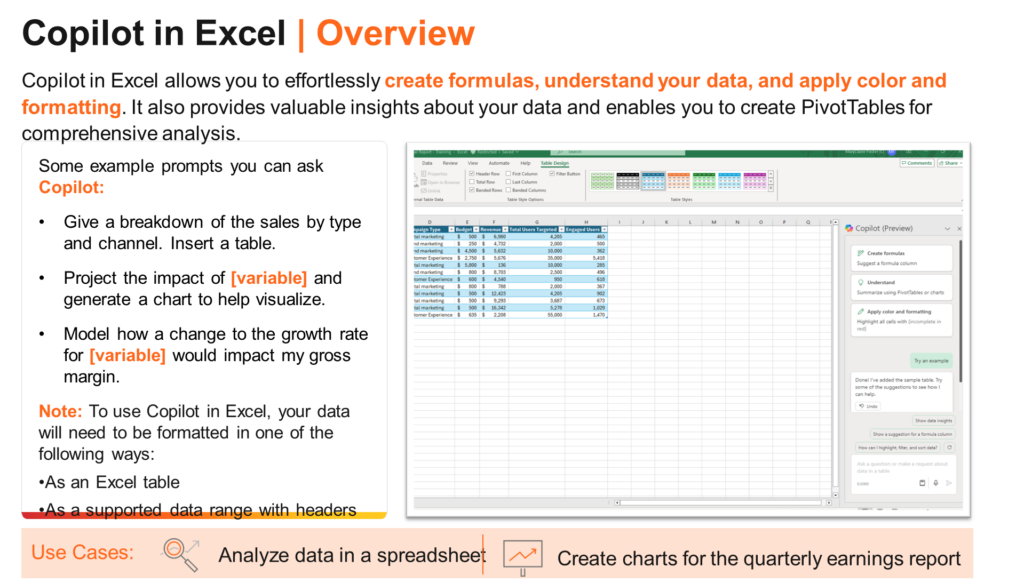
It can help:
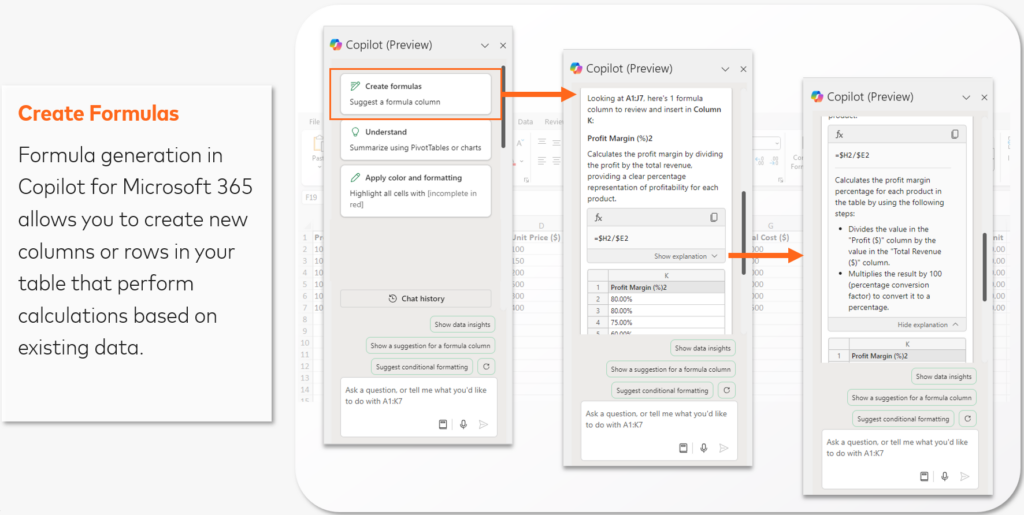
- Generate formulas
- Explain formulas
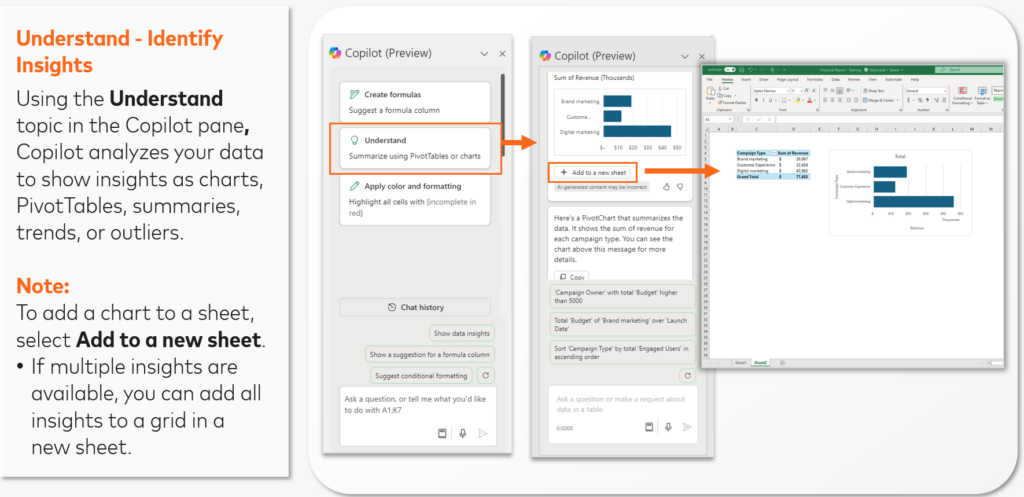
- Analyze trends
- Identify outliers
- Create charts
- Generate PivotTables
- Clean data
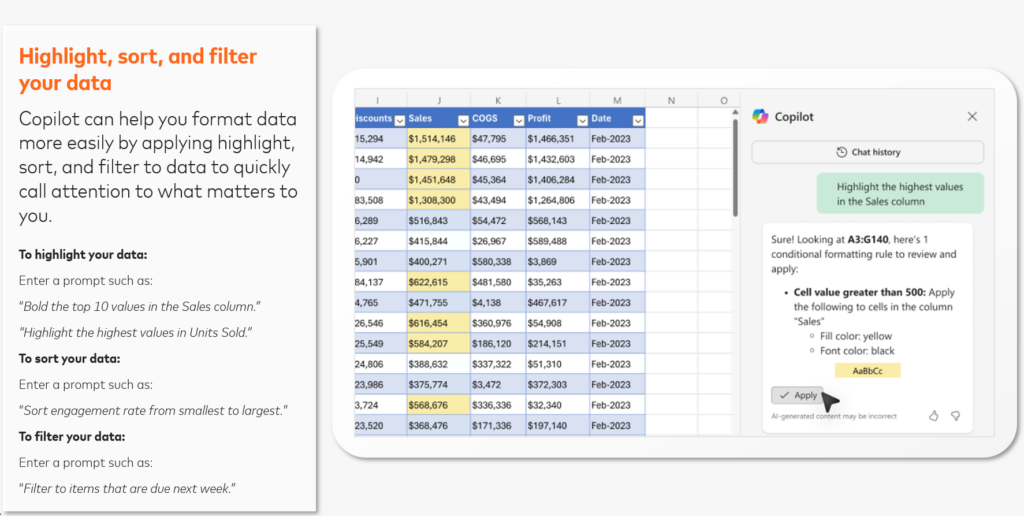
- Highlight, sort, and filter
- Forecast values
- Summarize datasets
Setup Requirements
Copilot works best when:
- The file is saved in Microsoft 365.
- Autosave is enabled.
- The data is formatted as an Excel table or a clear table-like range.
- Columns have unique headers.
Example Prompts
Summarize the trends in this table.
Create a formula to calculate year-over-year growth.
Highlight the top 10 values in the Sales column.
Create a bar chart of revenue by product.
What are the top three performing regions?
Forecast sales for the next six months.
Best Uses
Copilot in Excel is valuable for:
- Finance analysis
- Sales reporting
- KPI tracking
- Forecasting
- Data cleaning
- Operational reviews
- Executive dashboards
Important Limitation
Users should validate formulas, calculations, and insights before making decisions. Copilot can assist analysis, but it does not remove the need for financial or analytical review.
Copilot in OneNote
OneNote is often where ideas, meeting notes, brainstorming outputs, and project notes accumulate.
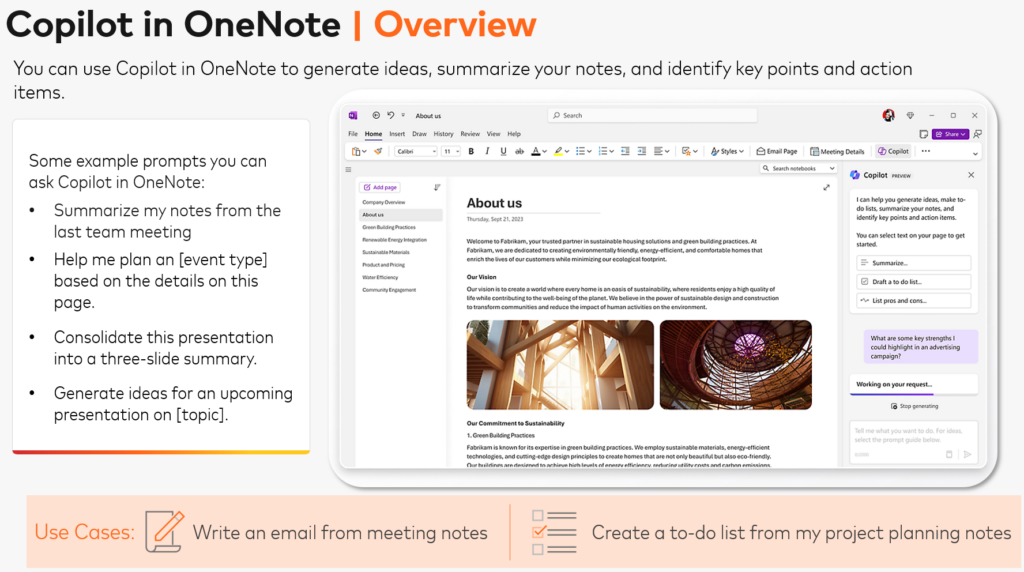
Copilot in OneNote can help:
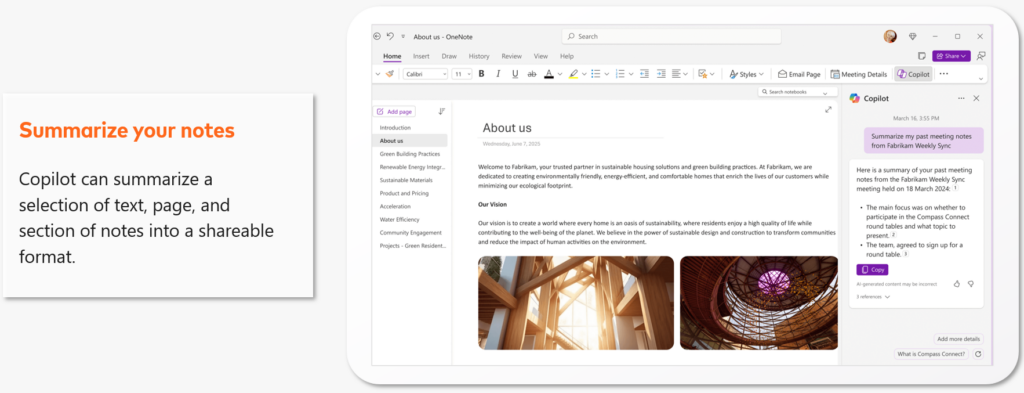
- Summarize notes
- Organize scattered thoughts
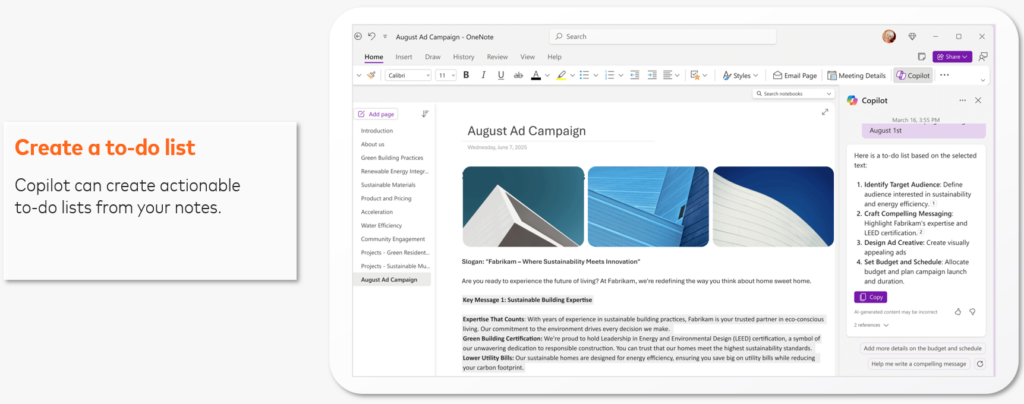
- Create to-do lists
- Extract action items
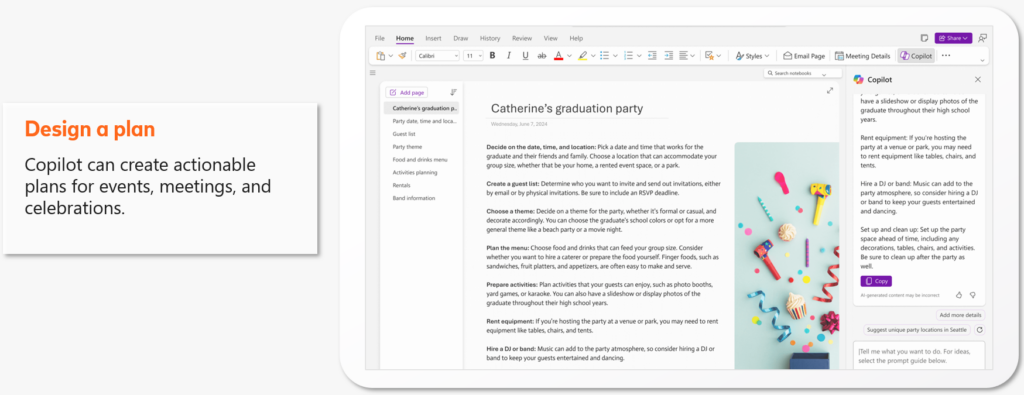
- Turn notes into plans
- Expand ideas
- Prepare follow-up summaries
Example Prompts
Summarize my notes from today’s meeting.
Extract action items from this page.
Organize these notes into sections.
Turn this list into a project plan.
Create a follow-up plan based on these notes.
Best Uses
Copilot in OneNote is useful for:
- Meeting follow-up
- Project planning
- Brainstorming
- Training notes
- Personal productivity
- Team coordination
Practical Tip
The more structured your notes are, the better Copilot performs. Use headings, bullets, and clear labels whenever possible.
Copilot in OneDrive
Copilot in OneDrive helps users work with files more efficiently.
It can support tasks such as:
- Summarizing documents
- Comparing files
- Answering questions about files
- Creating FAQs
- Recapping recordings
- Generating meeting notes from available content
This is especially helpful when users need to quickly understand large files or compare multiple versions without reading every page manually.
Copilot Notebooks
Copilot Notebooks provide a persistent workspace for organizing sources, prompts, and outputs around a specific initiative or topic.
They are useful when work requires continuity over time.
Good Uses for Notebooks
Use Notebooks when you want to:
- Organize documents around a project
- Maintain context over multiple sessions
- Work with a curated set of sources
- Collaborate around a topic
- Refine prompts and outputs over time
- Manage a persistent AI-assisted workspace
Example Use Cases
- Project planning notebook
- Legal matter notebook
- Product launch notebook
- Research initiative notebook
- Executive briefing notebook
- Training content notebook
Practical Tip
Notebooks are especially useful when the work is too complex for a one-time chat but not complex enough to require a custom agent.
Researcher and Analyst Agents
Microsoft 365 Copilot also includes agent-based capabilities that support deeper work.
Two important built-in agents are Researcher and Analyst.
Researcher Agent
The Researcher agent is designed for external and multi-source research.
It is useful for:
- Market research
- Competitive analysis
- Regulatory trends
- Industry research
- Strategy development
- Long-form briefing reports
- Multi-source synthesis
Example Prompt
Build a structured report on recent trends in enterprise AI adoption. Include key themes, risks, opportunities, examples, and sources. Format the output as an executive briefing.
Best Uses
Researcher is ideal when the question requires external information, multiple sources, and structured synthesis.
Analyst Agent
The Analyst agent is designed for internal data and file-based analysis.
It is useful for:
- Spreadsheet analysis
- Contract analysis
- Risk pattern identification
- Forecasting
- Data visualization
- Trend analysis
- Operational reporting
- File-based insight generation
Example Prompt
Analyze this Excel file of monthly sales data. Identify trends, outliers, top-performing products, and regions needing attention. Provide charts and a summary of recommendations.
Best Uses
Analyst is ideal when you already have files or datasets and want deeper analysis, patterns, or visual summaries.
Researcher vs Analyst: When to Use Which
| Tool | Best For | Example |
|---|---|---|
| Researcher | External research and multi-source synthesis | “Research market trends in AI adoption.” |
| Analyst | Internal files, spreadsheets, and structured data | “Analyze this sales data and identify outliers.” |
| Notebooks | Persistent topic or project context | “Maintain all sources and prompts for this initiative.” |
| Microsoft 365 Chat | General work assistance across Microsoft 365 | “Summarize emails and Teams messages about Project X.” |
Copilot Agents and Custom Agents
An AI agent is a specialized assistant designed to help with a specific workflow, domain, or task.
Agents can be simple or advanced.
Simple Agents
These respond to prompts and answer questions based on predefined instructions or knowledge sources.
Task Agents
These maintain context and support multi-step interactions.
More Advanced Agents
These may connect to systems, automate workflows, or coordinate tasks across tools.
Example Custom Agent Use Cases
- HR policy assistant
- Sales enablement assistant
- Legal intake assistant
- Project onboarding assistant
- Knowledge base assistant
- Training support assistant
- Product documentation assistant
Key Design Ingredients for Agents
When creating an agent, define:
- Role
- Task
- Context
- Knowledge sources
- Output format
- Constraints
- Tone
- Starter prompts
- Expected behavior
Governance Reminder
Agents should respect existing permissions and should be designed with appropriate data governance, access control, and user training.
Security and Data Considerations
Executives and organizations should treat Copilot adoption as both a productivity initiative and a governance initiative.
Copilot is designed to respect existing Microsoft 365 permissions. It should not expose content a user cannot already access.
However, organizations still need strong governance around:
- Sensitive data
- Restricted documents
- Data labeling
- Over-permissioned SharePoint sites
- Meeting recording policies
- AI acceptable use
- Output validation
- Human review
- Compliance requirements
Responsible Use Guidelines
When using Copilot:
- Do not upload highly sensitive information unless permitted.
- Do not include unnecessary personal information.
- Do not assume outputs are always correct.
- Validate summaries and analysis before acting.
- Review generated content before sending externally.
- Follow organizational policies.
- Use human judgment for critical decisions.
A useful principle:
Copilot can accelerate work, but humans remain accountable for outcomes.
Common Limitations of Copilot
Microsoft 365 Copilot is powerful, but users should understand its limitations.
Copilot may:
- Misinterpret vague prompts
- Miss context
- Produce incomplete outputs
- Summarize incorrectly
- Generate content that needs editing
- Struggle with very long documents or threads
- Require cloud-saved files for certain features
- Vary by application, license, tenant setting, or rollout status
This is normal for generative AI systems.
The right mindset is:
Use Copilot to accelerate the first 60–80% of the work, then apply human expertise to refine the final output.
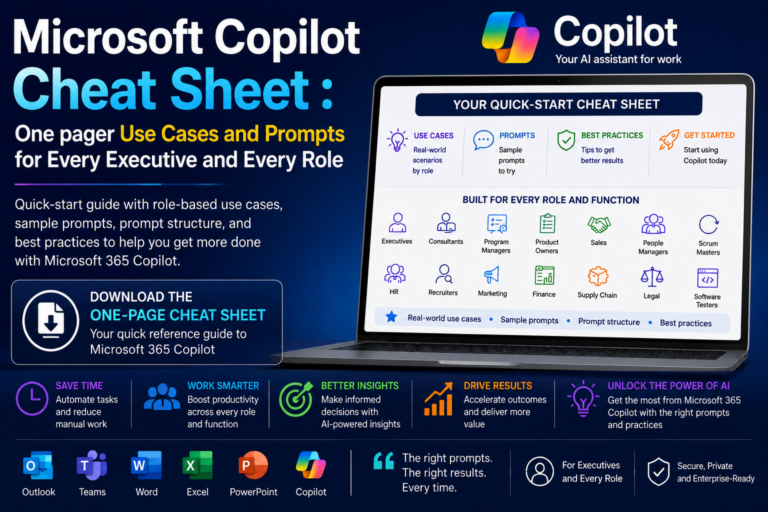
High-Impact Copilot Use Cases by Role
Executives
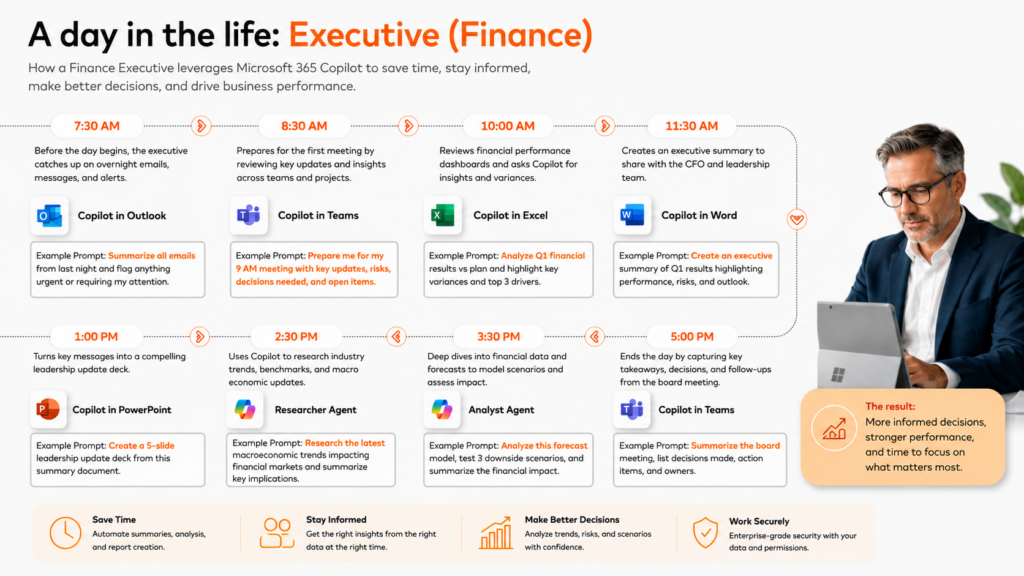
- Summarize meeting-heavy days
- Prepare for leadership reviews
- Draft executive communications
- Analyze decision memos
- Create talking points
- Identify risks and open decisions
Executive Assistants
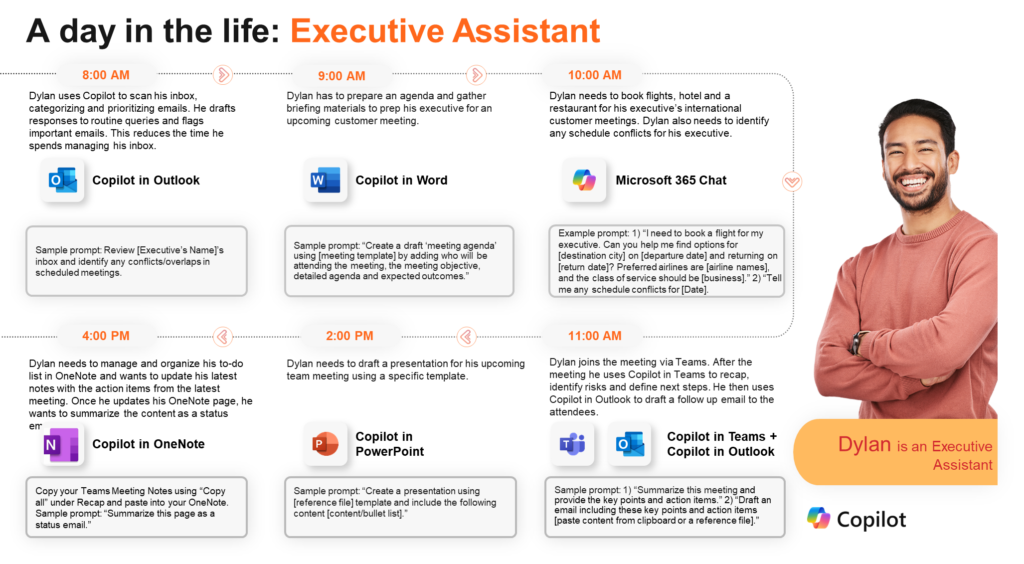
- Review calendar conflicts
- Draft agendas
- Summarize meetings
- Prepare briefing notes
- Draft follow-up emails
- Organize travel-related communication
Sales and Consulting
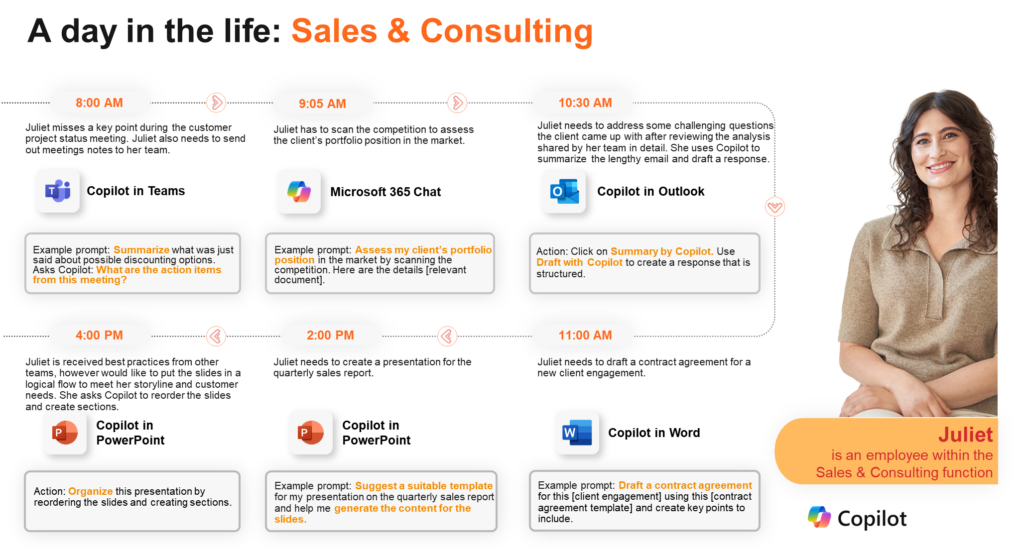
- Prepare for client meetings
- Summarize account history
- Draft proposals
- Tailor client communications
- Create presentations
- Analyze competitive positioning
Finance
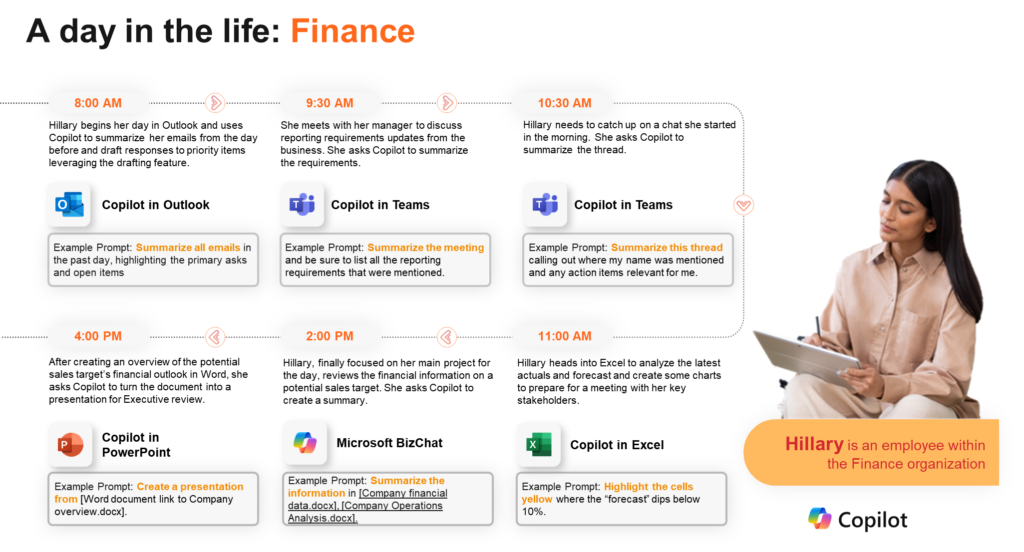
- Analyze spreadsheets
- Summarize budget updates
- Draft financial commentary
- Prepare charts
- Review forecast trends
- Identify anomalies
Legal and Compliance
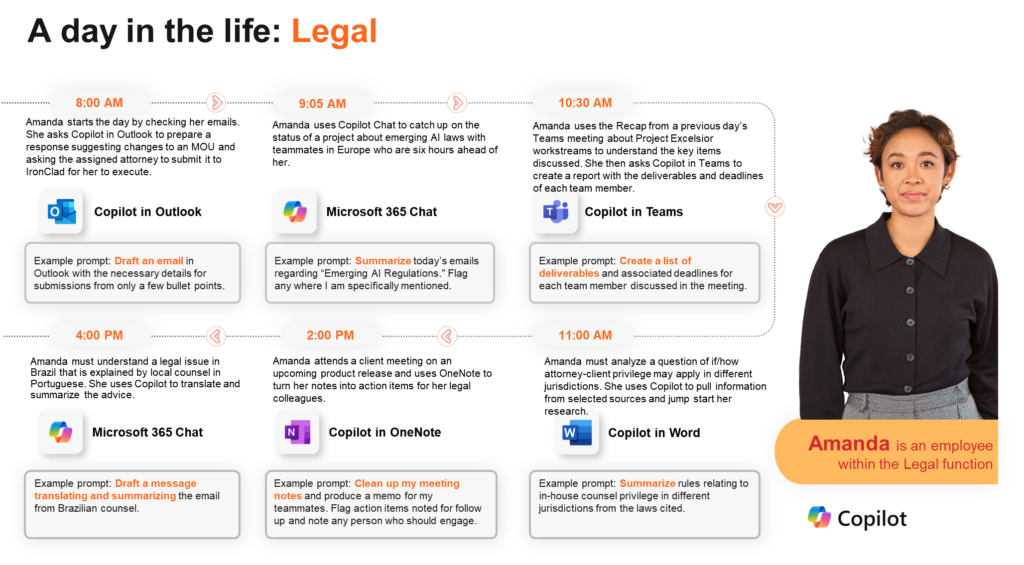
- Summarize legal documents
- Draft memos
- Review contracts
- Identify action items
- Analyze regulatory content
- Manage correspondence
Technology and Operations
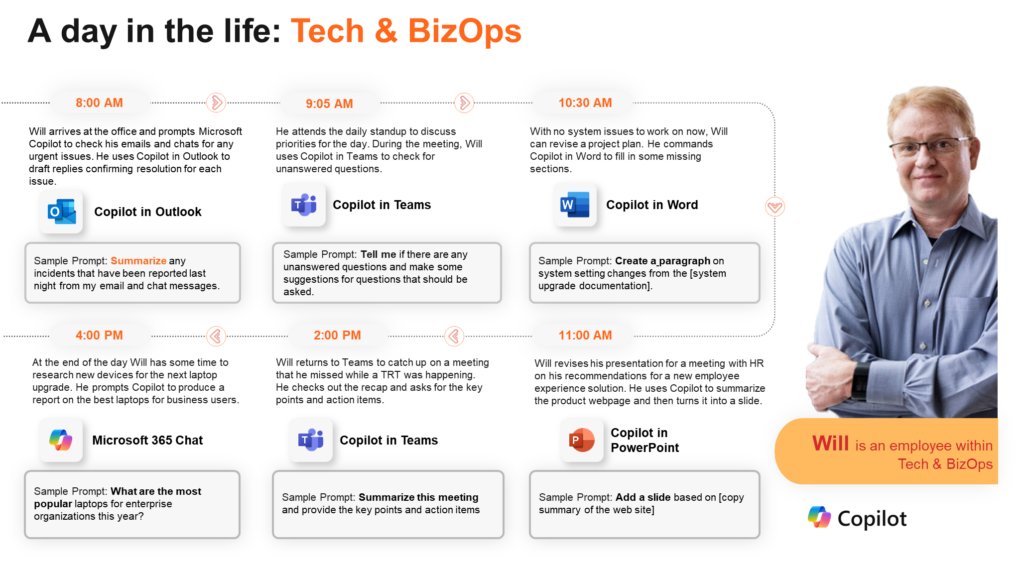
- Summarize incidents
- Draft status updates
- Review technical documents
- Create SOPs
- Prepare project communications
- Analyze operational data
Project, Program Managers, Scrum Masters
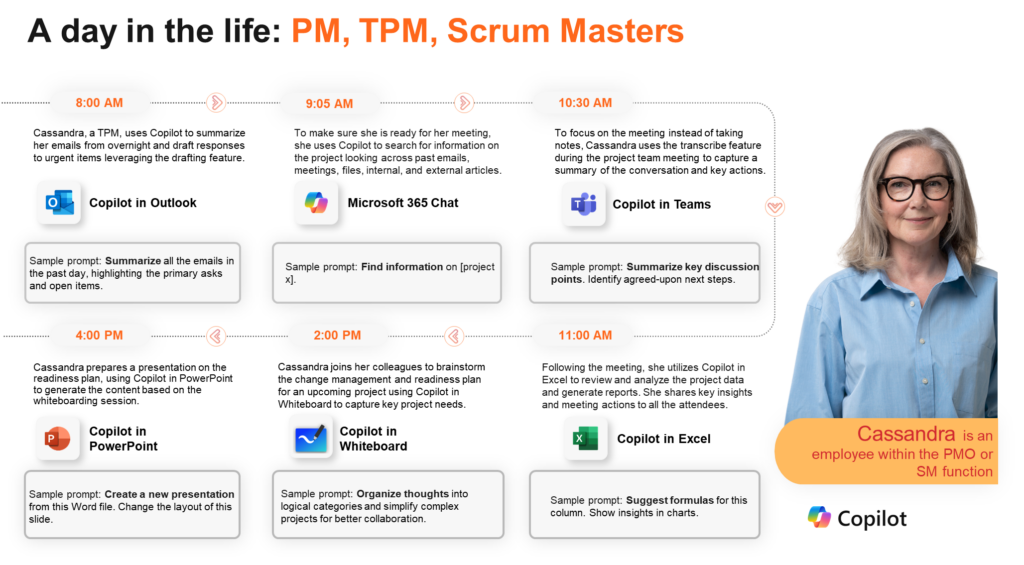
- Summarize status updates
- Track risks and dependencies
- Generate stakeholder communications
- Create project plans
- Extract action items from meetings
- Prepare steering committee summaries
Marketing and Communications
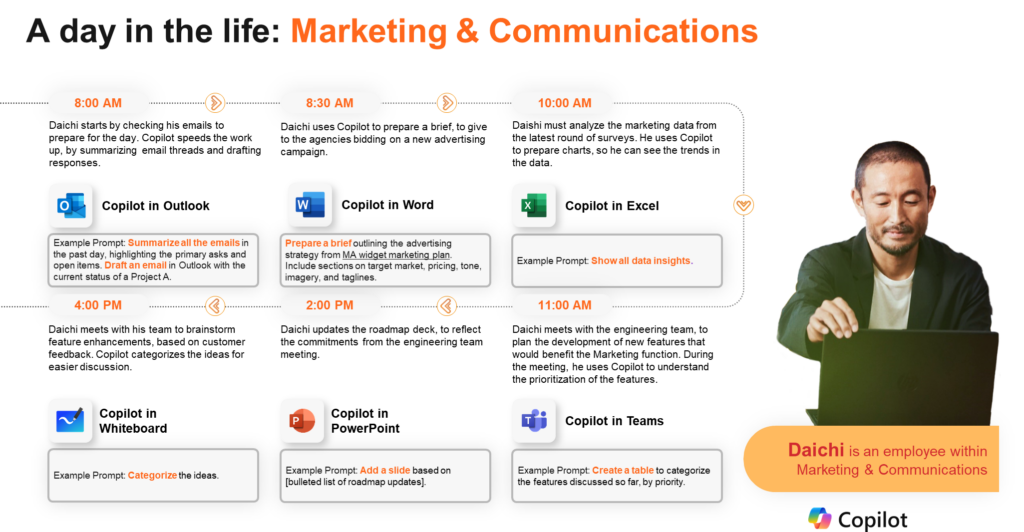
- Draft content
- Summarize campaign feedback
- Create briefs
- Brainstorm messaging
- Translate and adapt content
- Prepare presentations
Copilot Adoption Maturity Model
Organizations typically move through three maturity levels.
Level 1: Awareness
At this stage, users understand what Copilot is and begin experimenting.
Common behaviors:
- Trying simple prompts
- Summarizing emails
- Drafting basic content
- Exploring Copilot in individual apps
Success measure:
- Users understand what Copilot can and cannot do.
Level 2: Productivity
At this stage, users begin integrating Copilot into daily workflows.
Common behaviors:
- Summarizing meetings
- Drafting emails
- Creating presentations
- Analyzing spreadsheets
- Preparing for meetings
- Reusing prompt patterns
Success measure:
- Users save measurable time each week.
Level 3: Transformation
At this stage, Copilot becomes embedded into team workflows and business processes.
Common behaviors:
- Reusable prompt libraries
- Team-level best practices
- Shared notebooks
- Custom agents
- Workflow redesign
- AI-assisted operating models
Success measure:
- Teams change how work gets done, not just how individual tasks are completed.
Executive Onboarding Strategy for Microsoft 365 Copilot
For organizations onboarding executives and senior leaders, adoption should be practical, role-based, and outcome-driven.
Step 1: Start with Executive Use Cases
Focus on high-value scenarios:
- Meeting summaries
- Email triage
- Executive briefings
- Decision memos
- Board updates
- Strategy documents
- Follow-up communications
Step 2: Teach Prompting as a Leadership Skill
Executives do not need to become AI engineers. But they do need to understand how to ask better questions.
Teach them how to specify:
- Role
- Audience
- Context
- Source
- Format
- Decision objective
Step 3: Build Reusable Prompt Patterns
Examples:
Prepare me for this meeting using relevant emails, files, and previous meeting notes. Focus on open decisions, risks, and likely questions.
Summarize this report for a senior leadership audience. Include risks, recommendations, and decisions needed.
Draft a concise executive message based on these notes. Use a confident, clear, and professional tone.
Step 4: Establish Responsible Use Guardrails
Executives should understand:
- When to avoid sensitive information
- When to validate outputs
- When to involve experts
- When not to use AI-generated content directly
- How to preserve confidentiality
Step 5: Measure Adoption by Outcomes
Measure Copilot success using:
- Time saved
- Email reduction
- Meeting follow-up speed
- Document turnaround time
- User satisfaction
- Prompt reuse
- Workflow adoption
- Quality improvement
A 30-Day Copilot Adoption Plan
Week 1: Learn and Explore
- Understand Copilot basics.
- Learn Work Mode vs Web Mode.
- Try Copilot in Outlook, Teams, Word, and Chat.
- Practice basic prompts.
Week 2: Apply to Daily Work
- Use Copilot for email summaries.
- Summarize meetings.
- Draft follow-ups.
- Create document summaries.
- Prepare for upcoming meetings.
Week 3: Standardize Prompts
- Build personal prompt templates.
- Create team-level prompt examples.
- Identify repeatable use cases.
- Share successful prompts.
Week 4: Integrate into Workflows
- Use Copilot as part of daily routines.
- Introduce Notebooks for projects.
- Explore Researcher or Analyst.
- Identify candidates for agents.
- Measure time savings and lessons learned.
Practical Prompt Library
Executive Briefing Prompt
Act as an executive communications advisor. Summarize the attached document for a senior leadership audience. Focus on key decisions, risks, recommendations, and next steps. Format the output as five concise bullet points.
Meeting Summary Prompt
Summarize this meeting. Include key discussion points, decisions made, unresolved questions, action items, owners, and deadlines.
Email Draft Prompt
Draft a professional email to the team summarizing the key updates below. Use a concise, confident, and collaborative tone.
Excel Analysis Prompt
Analyze this table and identify key trends, outliers, risks, and opportunities. Provide a short summary and recommend three follow-up questions.
PowerPoint Prompt
Create a five-slide executive presentation from this document. Include an agenda, key findings, risks, recommendations, and next steps.
Word Editing Prompt
Rewrite this section to be more concise and executive-ready. Preserve the meaning but improve clarity, structure, and flow.
Teams Catch-Up Prompt
Summarize the recent Teams conversation. Highlight decisions, unresolved questions, action items, and any messages where I was mentioned.
OneNote Planning Prompt
Turn these notes into a structured project plan with objectives, milestones, risks, owners, and next steps.
Best Practices for Power Users
To get more value from Copilot:
- Start with clear goals.
- Use strong prompt structure.
- Iterate instead of accepting the first response.
- Ask Copilot to explain its reasoning.
- Ask for tables when comparing options.
- Ask for risks and assumptions.
- Ask for executive summaries.
- Ask for multiple versions.
- Save effective prompts.
- Build a personal prompt library.
- Use Notebooks for ongoing projects.
- Use Researcher for external research.
- Use Analyst for internal data analysis.
- Validate all important outputs.
The Future of Work with Microsoft 365 Copilot
Microsoft 365 Copilot is not simply about saving a few minutes on emails.
The larger opportunity is to redesign how knowledge work happens.
Instead of manually searching, summarizing, drafting, formatting, and following up, professionals can shift more energy toward:
- Judgment
- Strategy
- Relationship-building
- Decision-making
- Creativity
- Leadership
- Problem-solving
Copilot reduces the friction around work so people can focus on higher-value activities.
For organizations, the real value comes when Copilot is paired with:
- Training
- Adoption support
- Governance
- Process redesign
- Role-based use cases
- Strong data hygiene
- Responsible AI practices
The technology alone does not create transformation. Transformation happens when people learn how to use the technology well.
Final Takeaways
Microsoft 365 Copilot is a powerful AI assistant embedded into the tools professionals already use every day.
The biggest lessons are:
- Copilot combines AI with work context.
- Prompting is the most important user skill.
- Copilot works best when integrated into daily workflows.
- Outlook, Teams, Word, PowerPoint, Excel, OneNote, and Chat each offer unique value.
- Notebooks, Researcher, Analyst, and Agents expand Copilot from productivity assistant to workflow accelerator.
- Copilot respects permissions, but responsible use still matters.
- Human review remains essential.
- Organizations get the most value when they combine technology with training, governance, and adoption.
Conclusion
Microsoft 365 Copilot is more than a productivity tool.
It is a new operating layer for knowledge work.
Used casually, it can save time.
Used consistently, it can improve communication, decision quality, meeting productivity, and content creation.
Used strategically, it can help organizations rethink how work gets done.
The real opportunity is not just learning which button to click.
The real opportunity is learning how to collaborate with AI as part of the modern workplace.
For executives and professionals, that is the shift that matters most.
Explore available learning resources
•https://www.microsoft.com/en-us/microsoft-365/copilot-learning-center
•https://learn.microsoft.com/en-us/training/paths/get-started-with-microsoft-365-copilot/
Advanced learning resources
SharePoint Agents:
•https://www.youtube.com/watch?v=G4T7_9t0u0I
Agent Builder:
•https://learn.microsoft.com/en-us/training/paths/agents-online-workshop/
•https://www.youtube.com/watch?v=uC3nOh1x99A
Copilot Studio Agents:
•https://learn.microsoft.com/en-us/training/paths/power-virtual-agents-workshop/