Power Prompting with Microsoft Copilot

How to Get Better Results from Copilot Across Outlook, Teams, Word, Excel, PowerPoint, and Microsoft Chat
You have probably heard about Microsoft 365 Copilot.
Maybe your organization recently rolled it out. Maybe you have used it a few times in Outlook, Teams, Word, Excel, or PowerPoint. Maybe you are still wondering whether it is truly useful or just another enterprise technology trend.
Here is the truth: Microsoft 365 Copilot is only as powerful as the prompts you give it.
The difference between a mediocre Copilot experience and a transformational one often comes down to one skill: Prompting.
Prompting is not a technical skill reserved for engineers. It is a communication skill. It is how you instruct AI to summarize, draft, analyze, compare, rewrite, organize, and create. The professionals who learn how to prompt well will save time, communicate better, make faster decisions, and get more value from the tools they already use every day.
This article is a practical guide to power prompting with Microsoft 365 Copilot — written for executives, managers, consultants, architects, business professionals, and anyone who wants to get better results from AI at work.
What Is Prompting?
A prompt is the instruction you give to Copilot.
It can be a question:
“What are the key risks in this document?”
It can be a task:
“Draft a follow-up email based on these meeting notes.”
It can be an analysis request:
“Analyze this spreadsheet and identify the top three trends.”
Or it can be a workflow instruction:
“Create an executive summary, convert it into a slide outline, and draft a message to send to stakeholders.”
In simple terms:
Prompting is how you communicate with AI to get work done.
Microsoft 365 Copilot uses prompts across apps such as:
- Microsoft 365 Chat
- Outlook
- Teams
- Word
- Excel
- PowerPoint
- OneNote
- OneDrive
The same AI assistant can produce very different results depending on how clearly you explain what you need.
Why Prompting Matters
Most people start with prompts like:
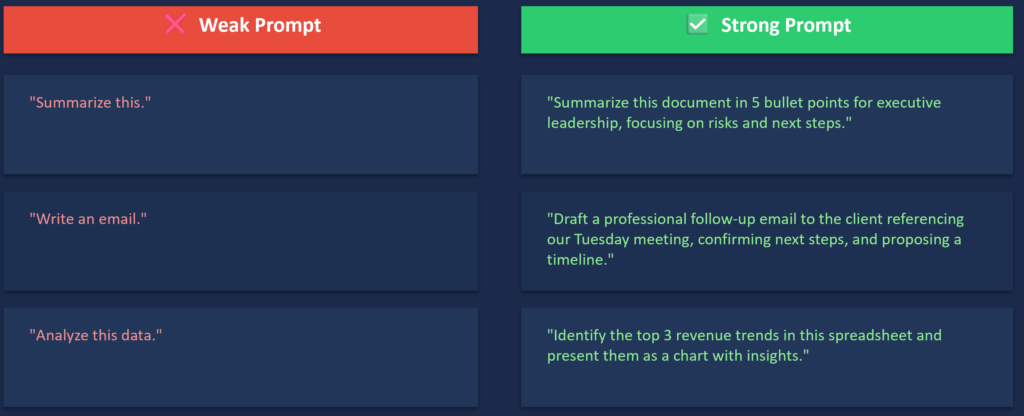
“Summarize this.”
or:
“Write an email.”
or:
“Analyze this data.”
These prompts are not wrong. They are just incomplete.
Copilot may produce something useful, but it will likely be generic. It may miss your audience, business context, tone, format, or decision objective.
Now compare that with a stronger prompt:
“Please summarize this document into five executive-level bullet points for a senior finance audience. Focus on risks, key decisions, financial impact, and recommended next steps. Use a concise, professional tone.”
Same tool.
Same document.
Very different outcome.
Weak Prompt vs Power Prompt
Weak Prompt
“Prepare me for my meeting.”
Power Prompt
“Act as an executive assistant. Prepare me for my 9 AM finance leadership meeting. Use my recent emails, Teams messages, and related documents from the past week. Summarize key updates, risks, open decisions, and action items. Return the output as a concise briefing with bullet points and a table of follow-ups.”
The second prompt is dramatically better because it includes:
- role,
- context,
- source,
- audience,
- expected output,
- and decision focus.
Copilot performs better when it knows what “good” looks like.
Prompting matters because Copilot does not automatically know:
- who the output is for,
- why you need it,
- what source it should use,
- what format you expect,
- what tone is appropriate,
- or what decisions the output should support.
You need to tell it.
The Copilot Mindset: You Are AI’s Most Important Prompt

One of the most important lessons for new Copilot users is this:
You are AI’s most important prompt.
Copilot is not magic. It responds to the quality of your instruction, context, examples, and expectations.
If your prompt is vague, the response will likely be vague.
If your prompt is structured, specific, and contextual, the response becomes much more valuable.
A useful principle is:
Garbage in, garbage out.
This does not mean you need to write perfect prompts from day one. In fact, you probably will not.
The better mindset is:
- start small,
- experiment,
- refine,
- ask follow-up questions,
- compare results,
- and keep improving.
The goal is not to find one perfect prompt.
The goal is to learn how to collaborate with Copilot.
Why Politeness Matters in Prompts
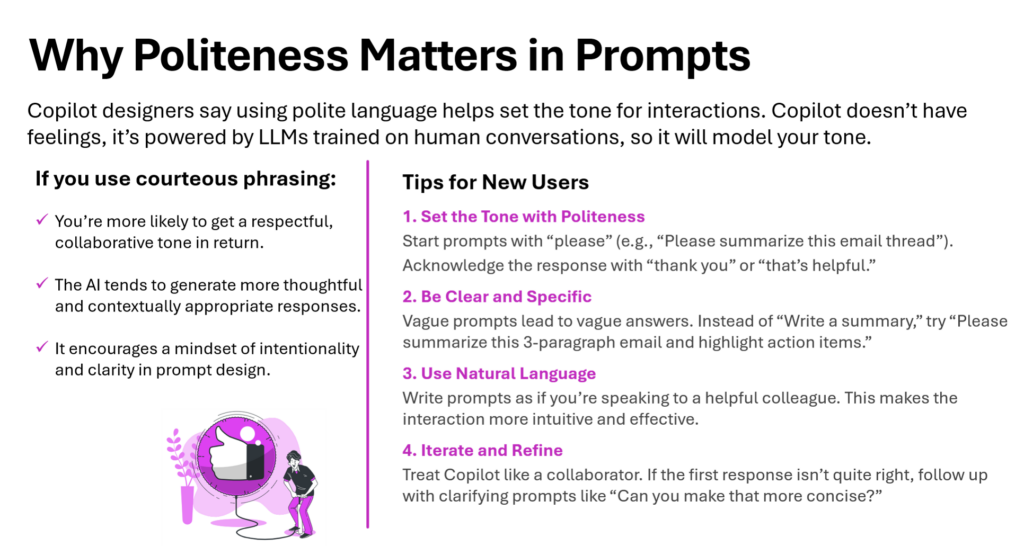
Copilot does not have feelings. But it has been trained on human communication patterns. That means the tone you use can influence the tone and quality of the response.
For example:
“Summarize this.”
may work.
But:
“Please summarize this email thread into three concise bullet points and highlight any action items.”
is usually better.
Polite, clear language helps establish a collaborative interaction. It also forces you to be more intentional about your request.
Instead of treating Copilot like a search box, treat it like a highly capable colleague.
Be clear.
Be specific.
Be professional.
Be conversational.
The Four Ingredients of a Great Copilot Prompt
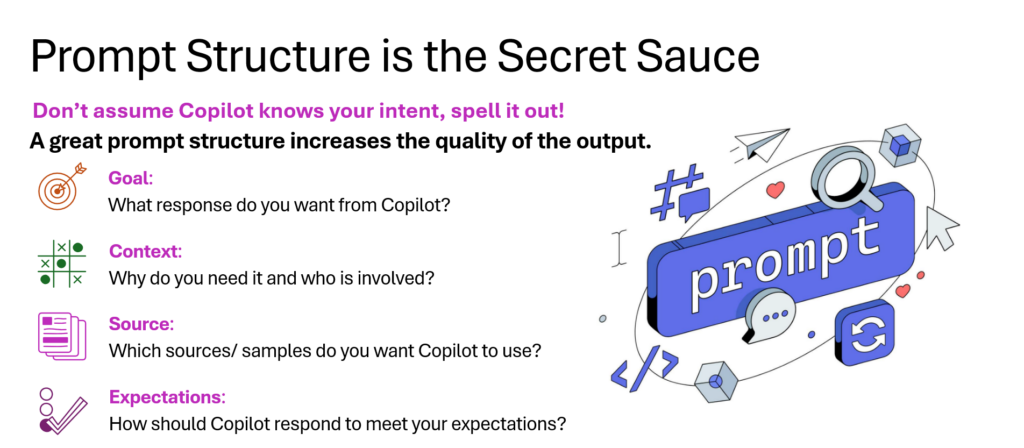
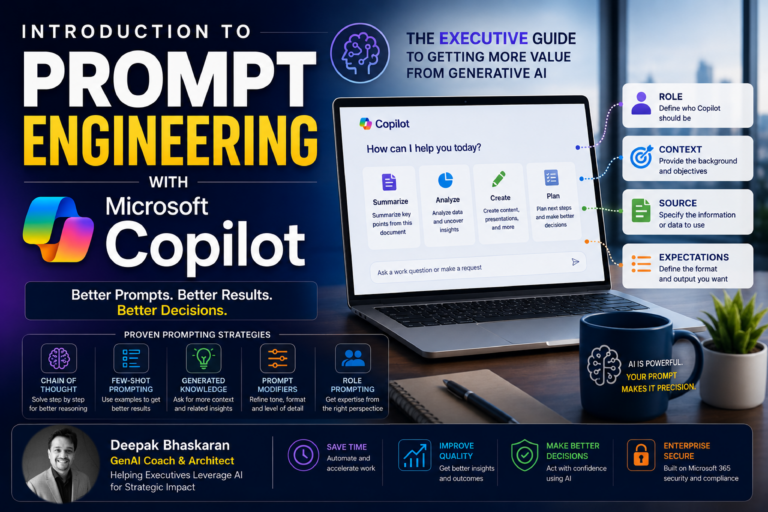
A strong Copilot prompt usually contains four ingredients:
- Goal
- Context
- Source
- Expectations
This framework is simple, practical, and works across almost every Copilot app.
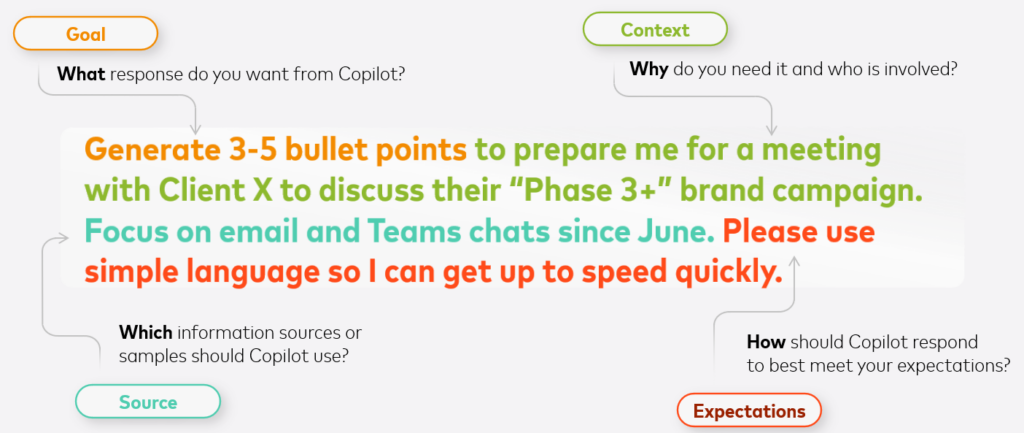
1. Goal: What Do You Want Copilot to Do?
The goal defines the task.
Examples:
- Summarize this document.
- Draft an email.
- Create a presentation outline.
- Analyze this spreadsheet.
- Identify risks.
- Prepare me for a meeting.
- Rewrite this content.
- Translate this message.
- Generate ideas.
A clear goal tells Copilot what action to perform.
Weak goal:
“Help me with this.”
Better goal:
“Draft a professional follow-up email based on these meeting notes.”
2. Context: Why Do You Need It?
Context explains the situation, audience, and purpose.
Examples:
- “This is for a senior leadership meeting.”
- “I am preparing for a client discussion.”
- “This will be sent to a non-technical audience.”
- “I need to understand the financial risks.”
- “This is for a board-level update.”
Context helps Copilot tailor the answer.
Weak prompt:
“Summarize this report.”
Better prompt:
“Summarize this report for a CFO who needs to understand financial risks, budget implications, and decisions required.”
3. Source: What Information Should Copilot Use?
The source tells Copilot what content to reference.
Examples:
- “Use this Word document.”
- “Use this Excel file.”
- “Use the meeting transcript.”
- “Use the email thread below.”
- “Use recent Teams chats about this project.”
- “Use the attached PowerPoint deck.”
Source grounding improves relevance.
Weak prompt:
“Create a status update.”
Better prompt:
“Create a status update using this project plan, the latest meeting notes, and recent emails about Project Alpha.”
4. Expectations: What Should the Output Look Like?
Expectations define format, tone, length, and structure.
Examples:
- “Use bullet points.”
- “Return the answer as a table.”
- “Keep it under 200 words.”
- “Use an executive tone.”
- “Include risks and recommendations.”
- “Make it simple for a non-technical audience.”
- “Create a five-slide outline.”
Expectations turn an AI response into a usable work product.
Weak prompt:
“Analyze this data.”
Better prompt:
“Analyze this Excel table and return a leadership-ready summary with three key trends, two risks, and one recommended action. Use a table format.”
The Power Prompt Formula
Here is a simple formula you can reuse:
Act as [role]. I need [goal] for [audience/context]. Use [source]. Return the output as [format/tone/length].
Example:
“Act as an executive communications advisor. I need a summary of this meeting for senior leadership. Use the meeting transcript and focus on decisions, risks, and action items. Return the output as a concise table with owners and deadlines.”
This prompt gives Copilot:
- a role,
- a task,
- an audience,
- a source,
- a format,
- and a clear business purpose.
That is power prompting.
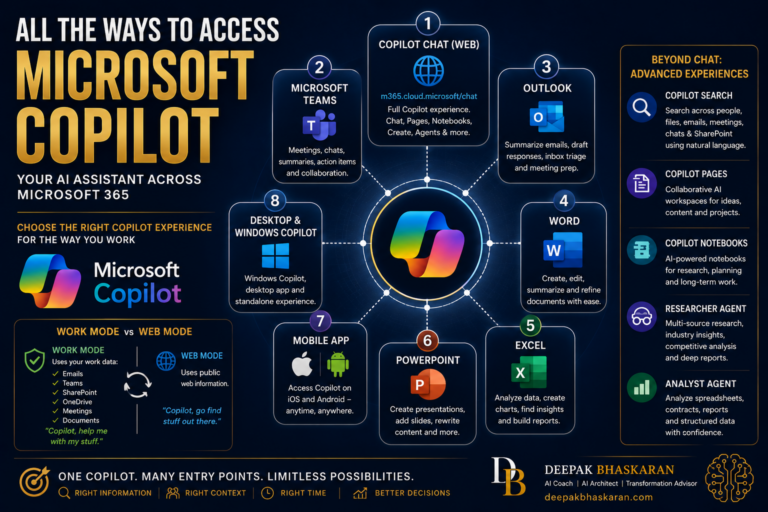
Work Mode vs Web Mode: Use the Right Context
Microsoft 365 Copilot often gives users the ability to work in Work Mode or Web Mode.
This distinction matters.
Work Mode
Use Work Mode when you want Copilot to help with your organizational data, such as:
- emails,
- Teams chats,
- meetings,
- OneDrive files,
- SharePoint documents,
- calendar information,
- internal project context.
A simple way to remember it:
Work Mode = “Copilot, help me with my stuff.”
Web Mode
Use Web Mode when you want Copilot to use public web information.
Examples:
- market research,
- public trends,
- general explanations,
- external examples,
- industry context.
A simple way to remember it:
Web Mode = “Copilot, go find stuff out there.”
Choosing the right mode improves the quality of your output.
If you need internal context, use Work Mode.
If you need public research, use Web Mode.
9 Best Practices to be a prompting superstar
Best Practice 1: Be Specific
Specific prompts produce better results.
Instead of:
“Help me write this email.”
Try:
“Rewrite this email to be more concise, professional, and confident. Keep it under 150 words and preserve the original intent.”
Instead of:
“Analyze this spreadsheet.”
Try:
“Analyze this spreadsheet and identify the top three revenue trends, any major outliers, and risks that should be highlighted to finance leadership.”
Specificity reduces ambiguity.
Best Practice 2: Define the Audience
The same content may need to sound very different depending on the audience.
Examples:
- “Explain this for a non-technical executive.”
- “Summarize this for a CFO.”
- “Rewrite this for a client audience.”
- “Create a board-level version.”
- “Make this appropriate for a project team.”
- “Simplify this for a new employee.”
Audience drives tone, detail, and structure.
Prompting without audience context is one of the most common mistakes.
Best Practice 3: Ask for a Format
Copilot performs better when you specify the structure.
Useful formats include:
- bullet points,
- tables,
- executive summaries,
- email drafts,
- meeting minutes,
- action item lists,
- FAQs,
- project plans,
- slide outlines,
- comparison matrices,
- pros and cons lists.
Example:
“Summarize this meeting as a table with four columns: Topic, Decision, Action Item, Owner.”
That output is immediately usable.
Best Practice 4: Provide Business Context
Business context turns a generic AI answer into useful work product.
Instead of:
“Create a presentation.”
Try:
“Create a five-slide presentation for a finance leadership review. Focus on Q2 performance, budget risks, forecast changes, and recommended actions.”
Instead of:
“Summarize this report.”
Try:
“Summarize this report for an executive audience. Focus on financial impact, operational risk, and decisions required.”
Copilot is more useful when it understands the business outcome.
Best Practice 5: Keep the Conversation Going
Prompting is not a one-time action.
The best Copilot users refine outputs through follow-up prompts.
Examples:
- “Make this more concise.”
- “Add more detail on the risks.”
- “Turn this into a table.”
- “Rewrite this in a more executive tone.”
- “Add recommendations.”
- “Create a slide outline from this.”
- “Simplify this for a non-technical audience.”
- “Highlight assumptions.”
- “Add next steps.”
Think of Copilot as a collaborator.
The first answer is usually a draft. The follow-up prompts make it useful.
Best Practice 6: Start Fresh When Switching Topics
Copilot uses conversation context. This is helpful when you are working on one topic, but it can become confusing if you switch to something unrelated.
Best practice:
Start a new chat when changing topics, projects, or workflows.
This helps Copilot avoid mixing old context with new instructions.
If you were analyzing a finance report and now want to draft a customer email, start fresh.
Best Practice 7: Use Quotation Marks and Highlighted Content
When you want Copilot to work on a specific phrase, paragraph, or section, be explicit.
Examples:
“Rewrite the paragraph that starts with ‘Our current forecast indicates…’”
“Replace the phrase ‘operational inefficiencies’ with simpler language.”
“Use the highlighted section as the source and rewrite it for executives.”
Quotation marks and highlighted content reduce confusion.
Best Practice 8: Ask Copilot to Explain
Copilot can provide explanations if you ask for them.
Examples:
“Explain how you arrived at this recommendation.”
“List the assumptions behind this analysis.”
“What information is missing?”
“What should I verify before using this?”
“Where might this summary be incomplete?”
This is especially important for executive, financial, legal, operational, and technical decisions.
Best Practice 9: Review Everything
Copilot can accelerate work, but humans remain responsible for the final output.
Always review for:
- accuracy,
- completeness,
- tone,
- bias,
- missing context,
- outdated information,
- sensitive data,
- business judgment.
A useful rule:
Copilot can create the first draft. You own the final decision.
Advanced Prompt Design Strategies – Role Prompting, One Shot, Prompt chaining and more
Once you understand the basics, you can use advanced prompting techniques to get even better results.
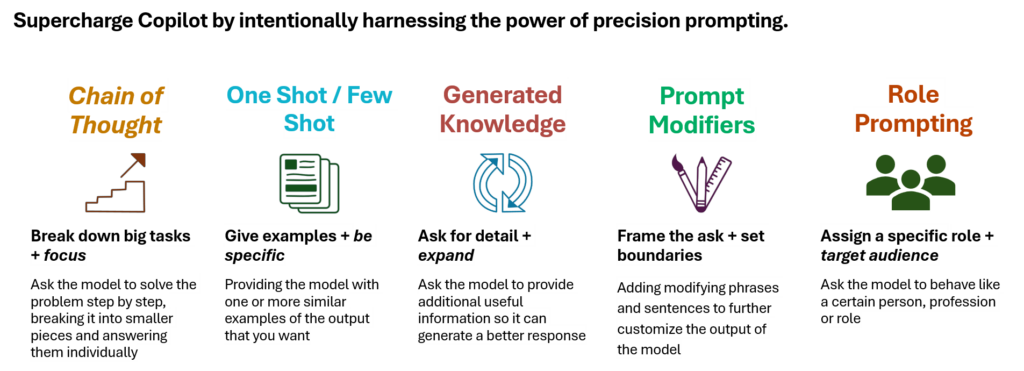
1. Role Prompting
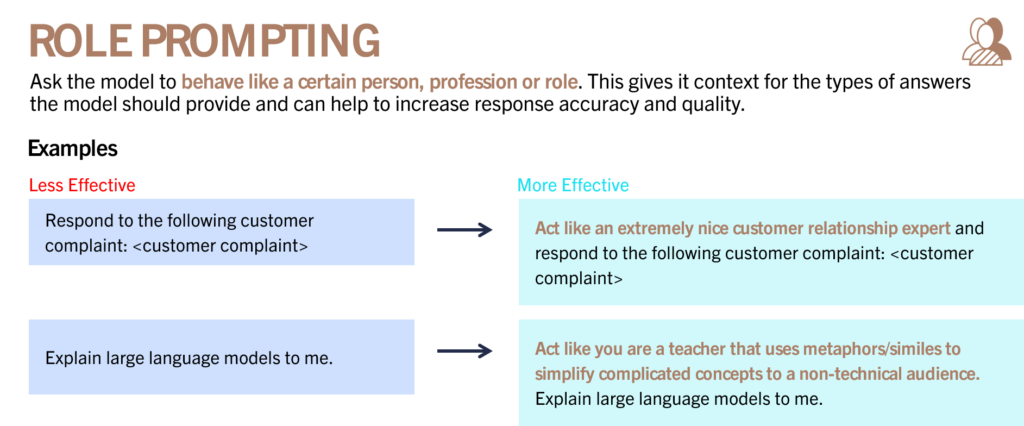
Role prompting tells Copilot what perspective to use.
Examples:
“Act as a CFO and analyze this forecast.”
“Act as a management consultant and identify risks in this proposal.”
“Act as an executive communications advisor and rewrite this message.”
“Act as a project manager and create an action plan.”
Role prompting helps Copilot produce responses that match the mindset you need.
Less Effective
“Explain cloud computing.”
More Effective
“Act as a teacher who uses simple metaphors. Explain cloud computing to a non-technical executive.”
2. Step-by-Step Prompting

For complex tasks, ask Copilot to break the problem down.
Example:
“Analyze this initiative step by step. First identify the objectives, then risks, then dependencies, then recommendations.”
This is useful for:
- strategy,
- financial analysis,
- project planning,
- root cause analysis,
- risk assessment,
- decision-making.
Complex problems often become clearer when Copilot is guided through the structure.
3. Prompt Modifiers
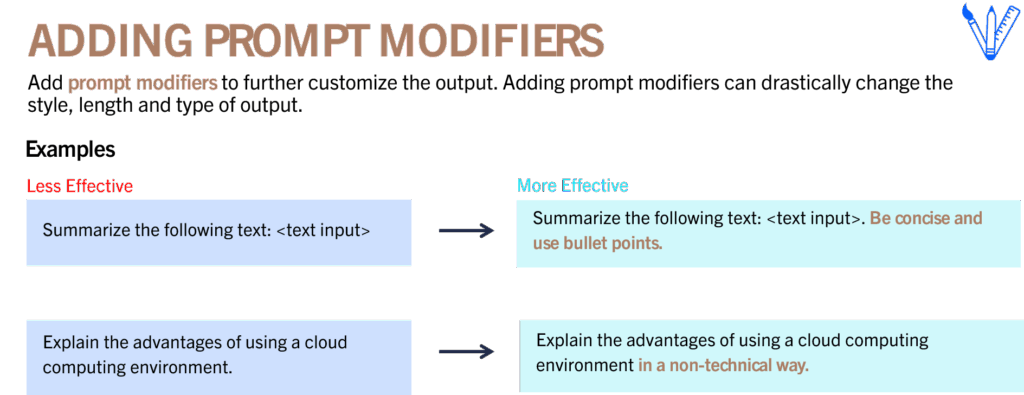
Prompt modifiers customize the output.
Examples:
- “Use bullet points.”
- “Be concise.”
- “Explain for a non-technical audience.”
- “Keep it under 200 words.”
- “Use a professional tone.”
- “Create a comparison table.”
- “Focus only on risks.”
- “Make it more persuasive.”
- “Use plain English.”
Basic Prompt
“Explain the advantages of cloud computing.”
Modified Prompt
“Explain the advantages of cloud computing in a non-technical way for senior business leaders. Use three bullet points and one simple analogy.”
Prompt modifiers are small additions that create dramatically better outputs.
4. Generated Knowledge Prompting
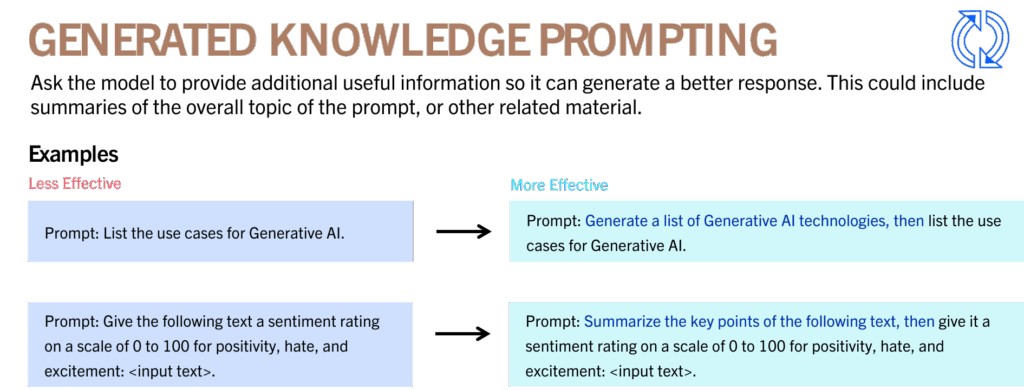
Generated knowledge prompting asks Copilot to provide useful background before completing the task.
Example:
“Before analyzing this project, summarize the industry trends that may impact it.”
Or:
“First explain the key factors that influence this type of decision, then apply them to the document.”
This is useful when:
- the topic is complex,
- the audience needs background,
- the decision requires context,
- or you want Copilot to identify relevant considerations before making recommendations.
5. One-Shot and Few-Shot Prompting
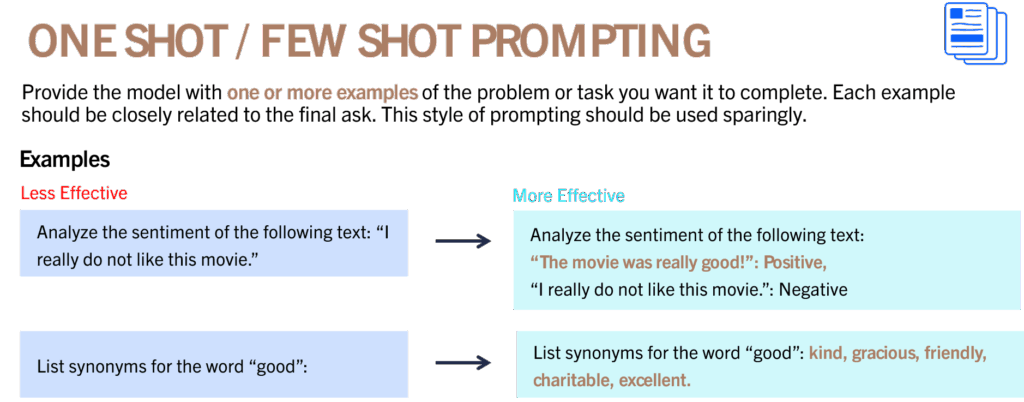
Few-shot prompting means giving Copilot examples of what you want.
Example:
“Use the following format for the output: Risk, Impact, Recommendation. Here is an example. Now apply the same format to this project.”
This is useful for:
- recurring status reports,
- executive updates,
- risk registers,
- customer communications,
- meeting summaries,
- project dashboards.
If you want consistency, show Copilot what good looks like.
Prompting Across Microsoft 365 Apps
Microsoft 365 Chat Prompt Strategy
Microsoft 365 Chat is useful when you want to work across emails, meetings, chats, files, and organizational context.
Example prompts:
“Summarize my emails, Teams messages, and channel messages from last week. List action items in a table with columns for Topic, Summary, Action Item, Owner, and Follow-up.”
“Prepare me for my 10 AM leadership meeting. Include key updates, risks, decisions needed, and open questions.”
“What are the latest updates on Project Alpha? Include relevant emails, meetings, and documents.”
Outlook Prompt Strategy
Use Copilot in Outlook to summarize, draft, reply, and improve email communication.
Example prompts:
“Summarize this email thread in three bullet points and identify any action items.”
“Draft a professional reply thanking the sender and asking for clarification on the timeline.”
“Rewrite this email to be more concise, confident, and executive-ready.”
“Summarize unread emails from today and flag anything urgent.”
Teams Prompt Strategy
Use Copilot in Teams to summarize meetings, chats, decisions, and action items.
Example prompts:
“Summarize this meeting and list all action items with owners and due dates.”
“What decisions were made in this meeting?”
“What questions were asked but not answered?”
“Draft a follow-up message to attendees summarizing the key decisions and next steps.”
Word Prompt Strategy
Use Copilot in Word to draft, rewrite, summarize, and organize documents.
Example prompts:
“Draft a one-page executive summary based on this report. Focus on risks, recommendations, and decisions needed.”
“Rewrite this section to be more concise and professional.”
“Summarize this document in five bullet points for a senior leadership audience.”
“Create a table of contents and suggest better section headings.”
Excel Prompt Strategy
Use Copilot in Excel to analyze data, create formulas, identify trends, and generate charts.
Example prompts:
“Analyze this table and identify the top three trends, outliers, and risks.”
“Create a formula to calculate year-over-year growth.”
“Highlight values where actuals are below forecast.”
“Create a chart showing revenue by region.”
“Summarize this dataset for a finance leadership review.”
PowerPoint Prompt Strategy
Use Copilot in PowerPoint to create, summarize, and improve presentations.
Example prompts:
“Create a five-slide executive presentation from this Word document.”
“Add speaker notes to each slide.”
“Create an executive summary slide for this deck.”
“Reorder these slides for better narrative flow.”
“Summarize this presentation into three key messages.”
OneNote Prompt Strategy
Use Copilot in OneNote to summarize notes, create plans, and organize ideas.
Example prompts:
“Summarize my notes from today’s meeting.”
“Create a to-do list from this page.”
“Turn these notes into a project plan.”
“Organize these notes into sections by topic.”
“Extract key decisions and follow-up actions.”
Top 10 Prompts to Try First with Copilot
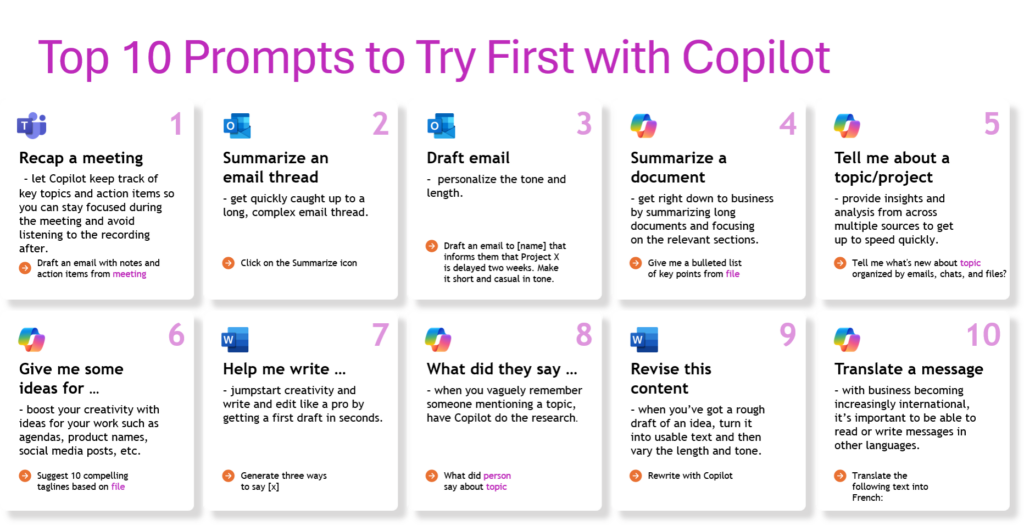
If you are new to Copilot, start with these:
- Summarize a meeting“Summarize this meeting and list key decisions, action items, owners, and deadlines.”
- Summarize an email thread“Summarize this email thread in three bullet points and highlight action items.”
- Draft an email“Draft an email to [name] explaining that Project X is delayed by two weeks. Make it short and professional.”
- Summarize a document“Give me a bulleted list of key points from this file.”
- Catch up on a project“Tell me what is new about Project X, organized by emails, chats, and files.”
- Generate ideas“Suggest 10 compelling taglines based on this product brief.”
- Help me write“Generate three ways to explain this message to a non-technical audience.”
- Find what someone said“What did [person] say about [topic]?”
- Revise content“Rewrite this section to be clearer, shorter, and more executive-ready.”
- Translate a message
“Translate the following text into French while maintaining a professional tone.”
These prompts are simple, but they quickly demonstrate Copilot’s practical value.
Prompt Gallery: Learn From Ready-Made Prompts
Microsoft’s Copilot Prompt Gallery provides example prompts across roles, apps, and use cases.
It helps users:
- discover new ways to use Copilot,
- learn prompt structure,
- save favorite prompts,
- reuse prompts across apps,
- and improve adoption.
For new users, the Prompt Gallery is one of the fastest ways to build confidence.
For leaders, it is also a great way to standardize prompting habits across teams.
Save and Reuse Your Best Prompts
When you find a prompt that works well, save it.
Examples of reusable prompts:
- daily email summary,
- weekly project update,
- executive meeting briefing,
- risk report,
- customer follow-up,
- financial variance summary,
- board update,
- project status report.
Over time, your personal prompt library becomes a productivity asset.
You should not have to reinvent useful prompts every week.
Scheduled Prompts: Let Copilot Work Proactively
One of the most powerful Copilot capabilities is scheduling prompts.
This allows users to run recurring prompts automatically.
Examples:
Monday Morning Briefing
“Summarize unread emails from last week and list priority action items.”
Weekly Project Update
“Create a project status summary every Friday using recent emails, Teams messages, and project documents.”
Executive Meeting Prep
“Prepare a leadership briefing every Monday morning with key updates, risks, and decisions needed.”
Scheduled prompts shift Copilot from a reactive assistant to a proactive productivity partner.
This is where Copilot starts becoming part of the operating rhythm of work.
Prompt Libraries by Role – Executive, PM, Sales, HR, TechOps and more
Executives
“Prepare me for today’s leadership meetings using relevant emails, files, and Teams messages. Focus on open decisions, risks, and action items.”
“Summarize the top five issues requiring my attention this week.”
“Draft an executive update based on today’s meetings and emails.”
Finance Leaders
“Analyze this forecast and identify key variances, risks, and business drivers.”
“Summarize this financial report for senior leadership in five bullet points.”
“Create a variance explanation table comparing actuals to forecast.”
Project Managers
“Summarize project updates from recent emails, meetings, and Teams messages.”
“Create a risk register from this project plan.”
“List open action items, owners, due dates, and dependencies.”
Sales and Consulting Professionals
“Prepare me for this client meeting using recent emails, proposals, and meeting notes.”
“Draft a client-ready follow-up email summarizing key points and next steps.”
“Create a proposal outline based on these discovery notes.”
HR and People Leaders
“Draft a communication to employees about this policy update.”
“Summarize employee feedback themes from these comments.”
“Create a manager talking-points document from this announcement.”
Technology and Operations Leaders
“Summarize this incident report and identify root causes, impacts, and recommended actions.”
“Create an executive update from these operational metrics.”
“Draft a post-incident communication for business stakeholders.”
The Copilot Prompt Maturity Model
Most users progress through four stages.
Level 1: Basic Prompting
At this stage, users ask simple questions.
Examples:
“Summarize this.”
“Write an email.”
“Analyze this.”
This is useful, but limited.
Level 2: Structured Prompting
Users begin adding:
- goal,
- context,
- source,
- expectations.
Example:
“Summarize this document for a senior leadership audience. Focus on risks and decisions. Use five bullet points.”
This creates better outputs.
Level 3: Advanced Prompting
Users apply techniques such as:
- role prompting,
- prompt modifiers,
- step-by-step prompting,
- generated knowledge,
- few-shot prompting,
- prompt chaining.
This is where Copilot becomes a true productivity accelerator.
Level 4: Workflow Orchestration
At this stage, users think beyond individual prompts.
They build workflows such as:
- meeting summary → executive update → email → slide outline,
- data analysis → insights → recommendations → presentation,
- project update → risk register → stakeholder message,
- email summary → action list → follow-up plan.
This is where Copilot changes how work gets done.
Common Prompting Mistakes
Avoid these mistakes:
- being too vague,
- skipping context,
- not defining the audience,
- not specifying the output format,
- asking too many unrelated things at once,
- using the wrong mode,
- failing to provide source material,
- accepting the first output without review,
- staying in the same chat across unrelated topics,
- assuming Copilot is always correct.
Most poor Copilot outputs are not AI failures.
They are instruction failures.
A Practical Prompt Checklist
Before submitting a prompt, ask yourself:
- What do I want Copilot to do?
- Who is the audience?
- Why is this needed?
- What source should Copilot use?
- What format do I want?
- What tone should it use?
- What should it focus on?
- What should it avoid?
- Do I need a summary, table, email, report, or presentation?
- What should I verify before using the output?
This checklist can dramatically improve your results.
10 Power User Tips
If you remember nothing else, remember these:
- Start every task by asking: “Could Copilot create the first draft?”
- Be specific.
- Always include context.
- Define the audience.
- Ask for a format.
- Iterate with follow-up prompts.
- Use Work Mode for internal context and Web Mode for external research.
- Save prompts that work.
- Schedule recurring prompts where possible.
- Validate everything important.
The Bottom Line
Microsoft 365 Copilot is not a gimmick.
It is not just another feature update.
It is the beginning of a new way of working — one where AI helps reduce the repetitive, time-consuming parts of knowledge work so professionals can focus on judgment, strategy, creativity, and decision-making.
But the advantage does not go simply to the people who have access to Copilot.
The advantage goes to the people who learn how to use it well.
Prompting is a skill.
Workflow integration is a habit.
AI collaboration is a new way of working.
The question is not whether Copilot will change how work gets done.
The question is whether you will lead that change — or catch up to it later.