How to Access Microsoft Copilot: All the ways you can leverage copilot for your daily work life

Understanding Where Copilot Lives and Which Experience Is Right for You
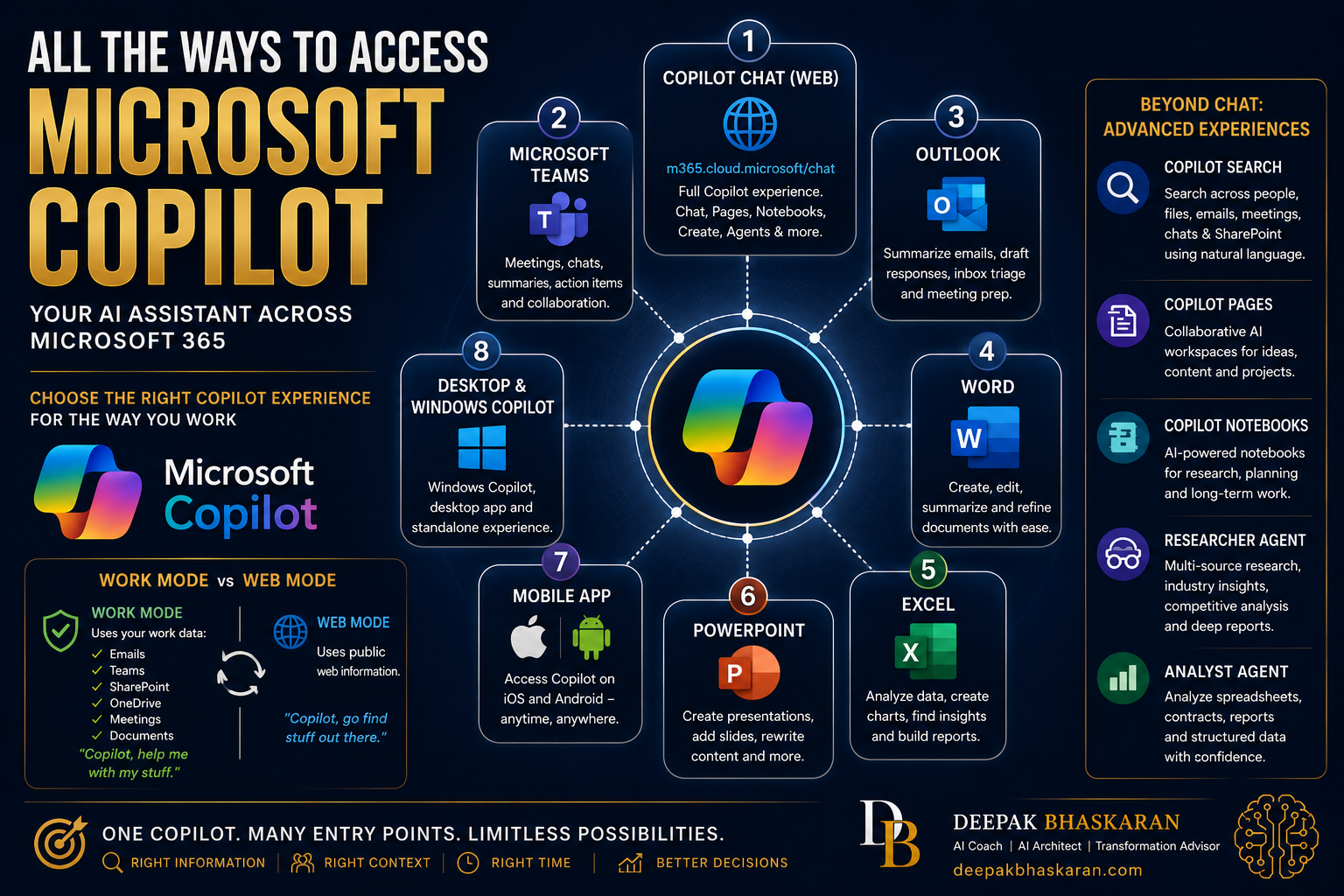
One of the biggest misconceptions about Microsoft Copilot is that it is a single application.
It isn’t.
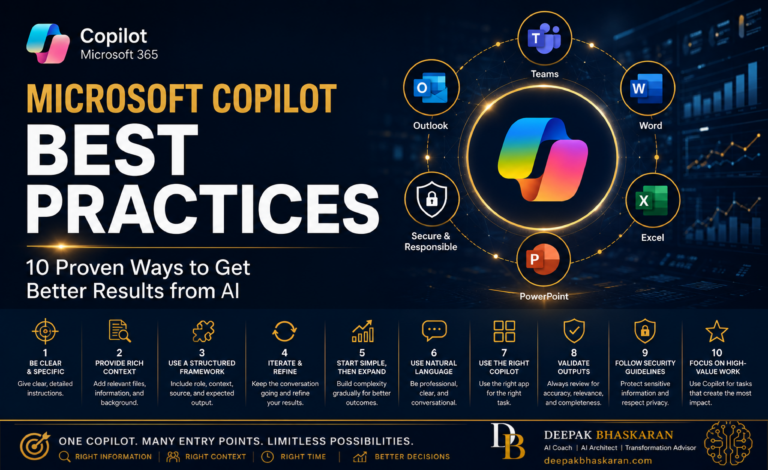
In reality, Copilot exists across the entire Microsoft ecosystem.
You can access it through:
- Web browsers
- Teams
- Outlook
- Word
- Excel
- PowerPoint
- Mobile devices
- Desktop applications
- Microsoft 365 Chat
- Edge Browser
- And increasingly through specialized experiences such as Notebooks, Researcher, Analyst, and Agents.
This creates a common challenge:
Which Copilot should I use?
Many users find Copilot in Teams and assume that is the complete experience.
Others use Copilot in Word and never realize there is a dedicated Copilot Chat experience.
Some users never discover advanced capabilities such as Notebooks, Pages, Researcher, or Analyst.
This guide explains the different ways to access Microsoft Copilot, when to use each experience, and which options provide the most value for executives and knowledge workers.
Microsoft Copilot Is Not a Single Tool
Think of Copilot as:
An AI layer embedded across the Microsoft ecosystem.
Rather than launching one application, Microsoft has integrated Copilot into the tools people already use every day.
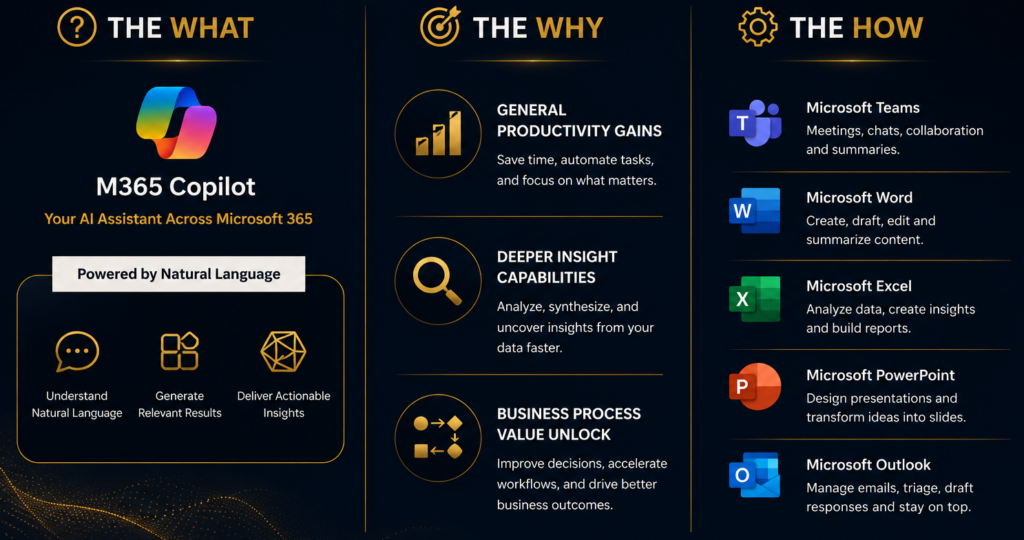
That means:
- Different entry points
- Different experiences
- Different capabilities
- Different use cases
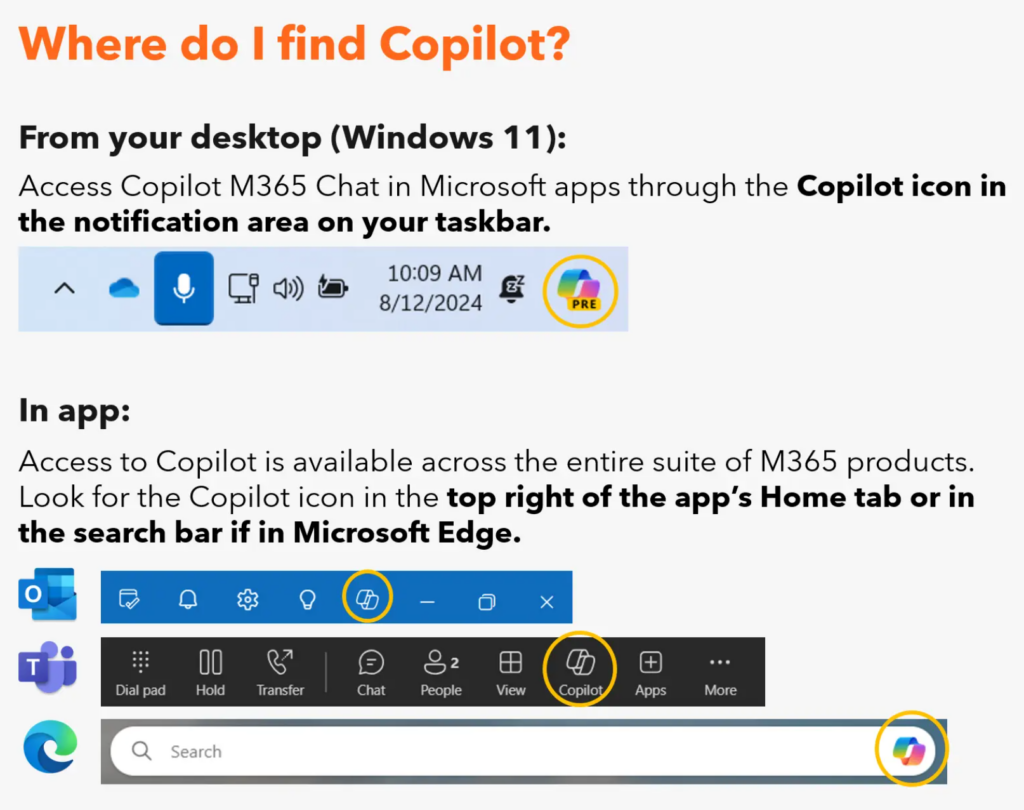
Understanding these differences can dramatically improve your productivity.
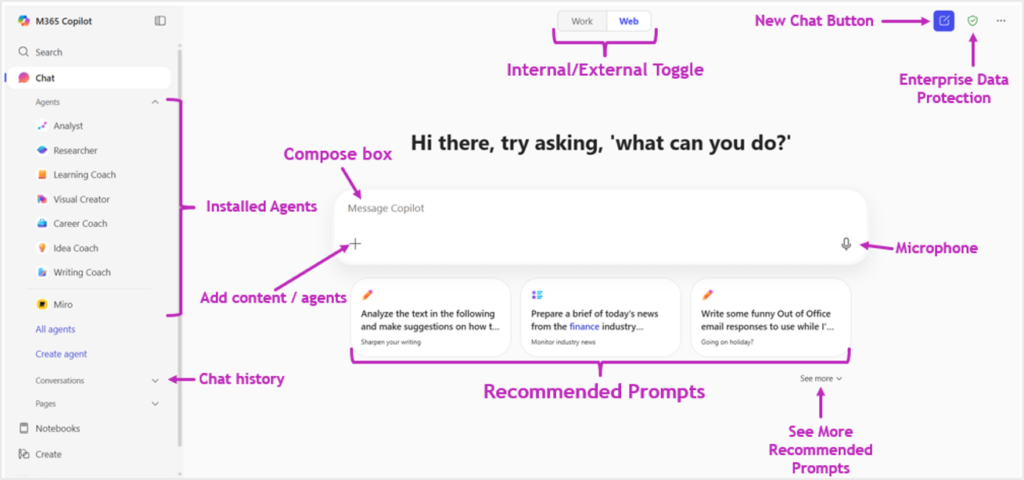
Method 1: Microsoft 365 Copilot Chat (Web)
Best Overall Experience
The web-based Copilot Chat experience is often the best starting point for most users.
Access
https://m365.cloud.microsoft/chat
or
https://www.microsoft365.com/chat
Best For
- Catching up on work
- Research
- Content creation
- Meeting preparation
- Cross-functional questions
- Executive briefings
- Accessing Work and Web modes
Why It Matters
This is where many of Microsoft’s newest Copilot capabilities appear first.
Examples include:
- Copilot Chat
- Pages
- Notebooks
- Create
- Researcher
- Analyst
For many users, this becomes the primary Copilot workspace.
Method 2: Microsoft Teams
The Most Common Enterprise Entry Point
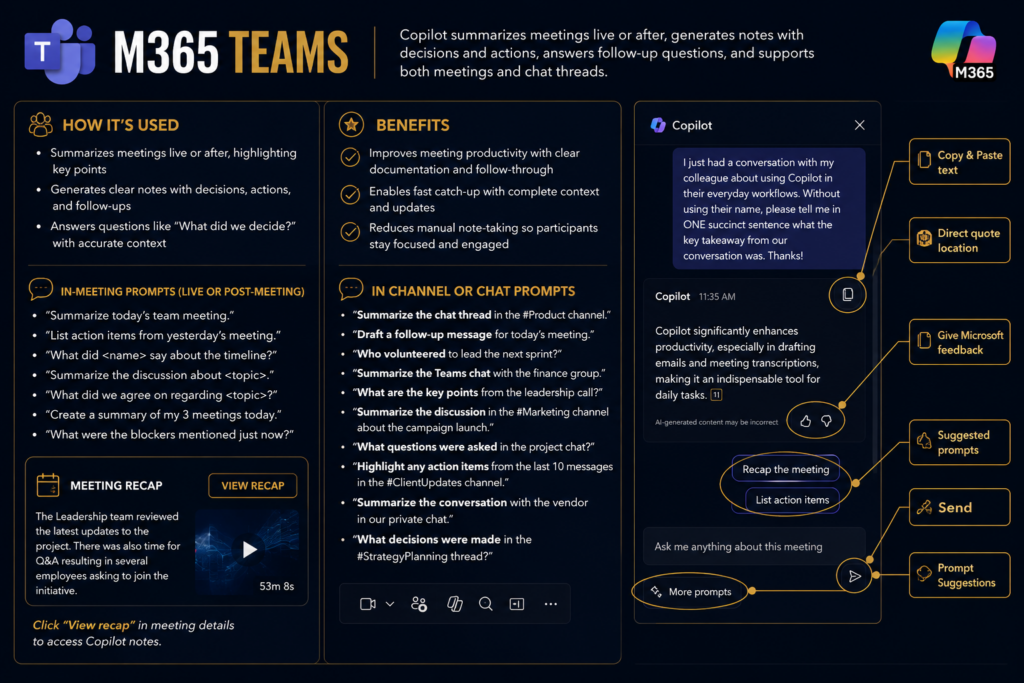
Many organizations introduce users to Copilot through Teams.
Access
Available from:
- Teams sidebar
- Teams meetings
- Teams chats
- Meeting recaps
Best For
- Meeting summaries
- Action items
- Chat thread analysis
- Collaboration
- Team communication
Example Uses
- “Summarize this meeting.”
- “What decisions were made?”
- “What action items were assigned to me?”
- “Draft a follow-up email.”
Important Limitation
The Teams experience may not provide access to all Copilot capabilities.
Several internal training programs highlight that Teams may have reduced functionality compared to the web or standalone experiences.
If you are looking for the “full Copilot canvas,” use the web or desktop experiences.
Method 3: Outlook
Your AI-Powered Executive Assistant
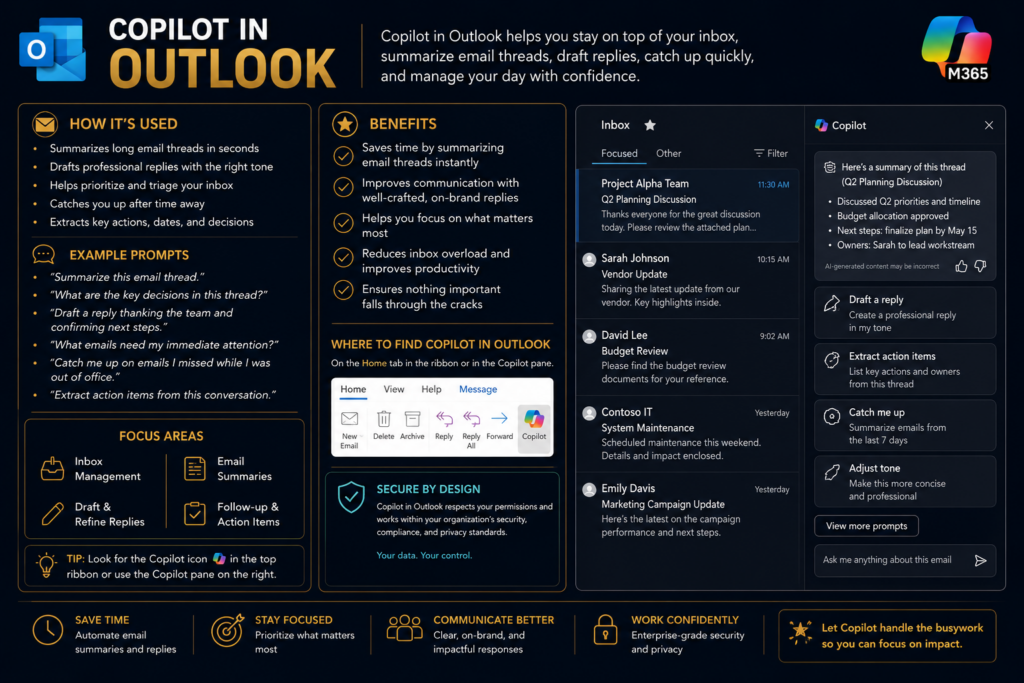
Copilot in Outlook is one of the most practical productivity boosters.
Best For
- Summarizing email threads
- Drafting responses
- Inbox triage
- Meeting preparation
- Vacation catch-up
Example Prompts
Summarize all unread emails from the past three days.
Draft a response using a professional tone.
Highlight any urgent requests that require my attention.
For busy executives, Outlook Copilot alone can save hours each week.
Method 4: Word
Your AI Writing Partner
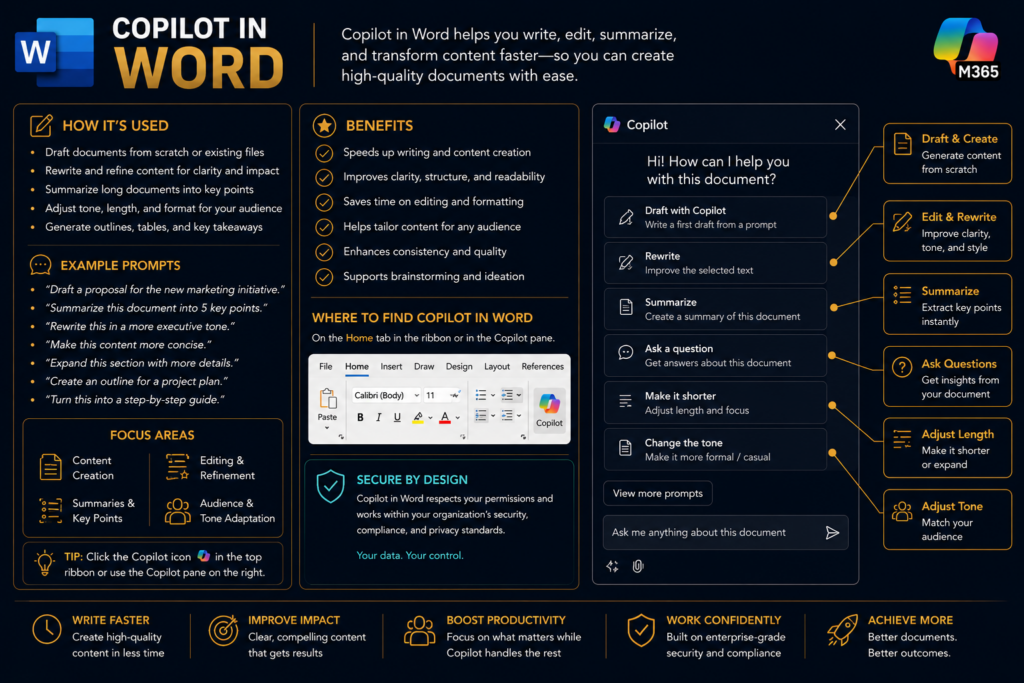
Copilot in Word helps create, edit, summarize, and refine content.
Best For
- Reports
- Proposals
- Policies
- Executive summaries
- Meeting documentation
- Strategic plans
Example Prompts
Create a one-page executive summary.
Rewrite this section for a leadership audience.
Summarize this document into five key points.
Word is often where users first experience the power of AI-assisted content creation.
Method 5: Excel
Your AI Data Analyst
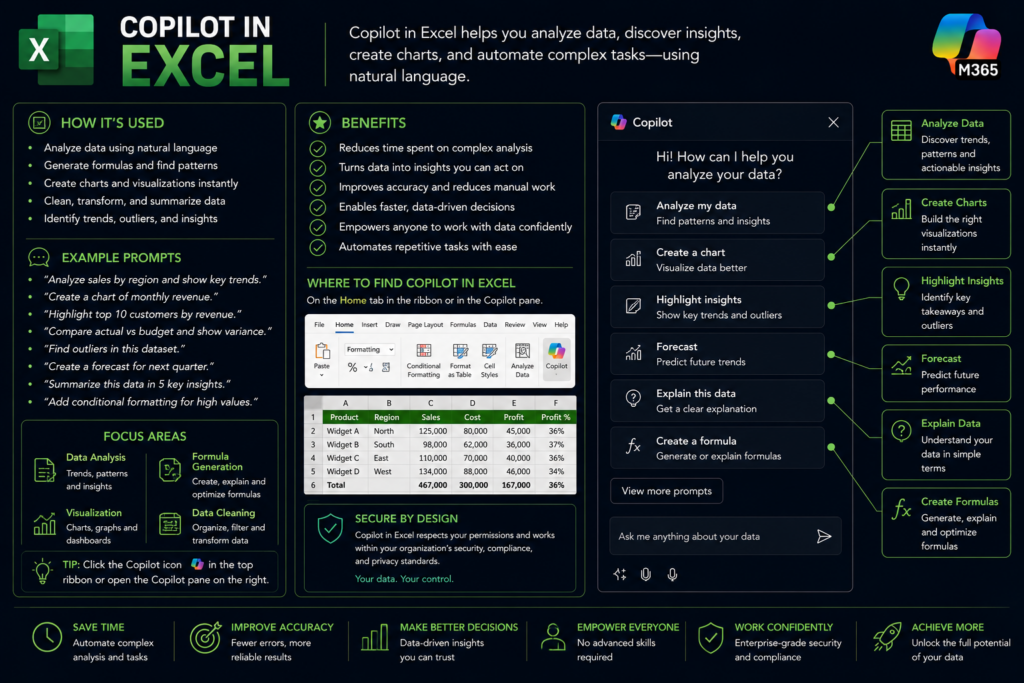
Copilot in Excel helps analyze data using natural language.
Best For
- Financial analysis
- Trend identification
- Formula generation
- Chart creation
- Executive dashboards
Example Prompts
Show me the top revenue trends.
Create a chart showing quarterly performance.
Highlight values below forecast.
For finance and operations teams, this can significantly reduce analysis time.
Method 6: PowerPoint
Your Presentation Designer
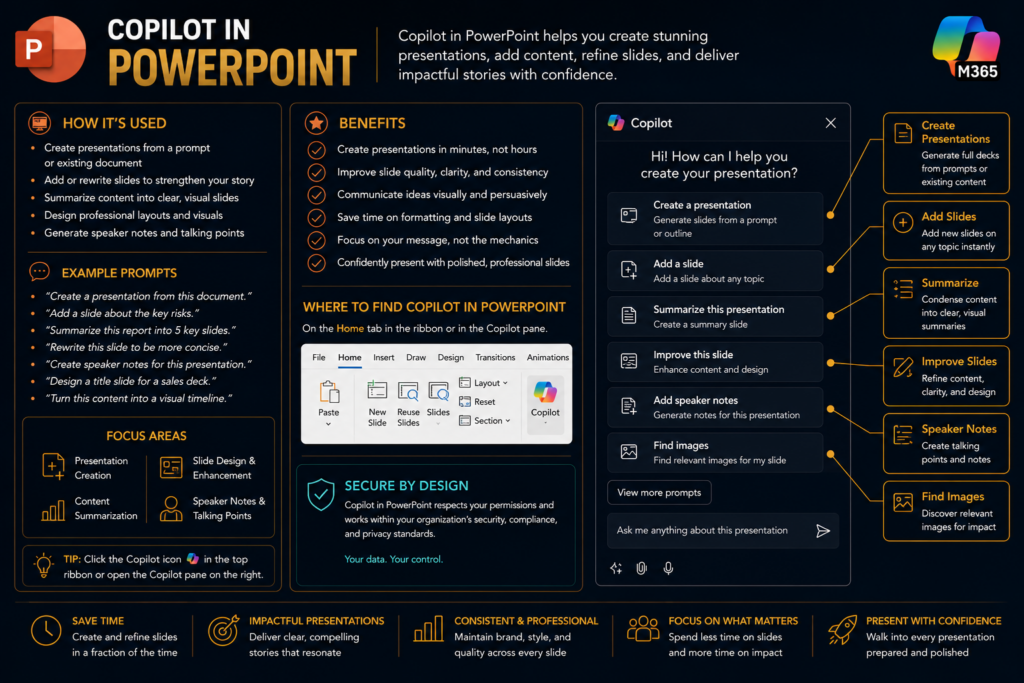
Copilot in PowerPoint can generate and improve presentations.
Best For
- Executive briefings
- Board presentations
- Sales decks
- Workshop content
- Strategy reviews
Example Prompts
Create a presentation from this Word document.
Add a slide explaining project risks.
Rewrite these slides for executives.
PowerPoint Copilot is especially useful when paired with Word or Copilot Chat.
Method 7: Mobile App
Copilot Anywhere
Copilot is available on:
- iOS
- Android
Best For
- Travel
- Commutes
- Executive preparation
- Quick research
- Voice interactions
Executives who spend significant time away from their desks often find the mobile experience valuable for quick updates and briefings.
Method 8: Desktop & Windows Copilot
Native Desktop Experience
Copilot can be accessed through:
- Windows Copilot
- Standalone desktop applications
- Enterprise software portals
Best For
- Dedicated Copilot sessions
- Deep work
- Research
- Extended AI conversations
Many organizations provide a standalone Copilot application that offers a richer experience than in-app integrations.
Understanding Work Mode vs Web Mode
One of the most important concepts in Copilot. Copilot has two modes.
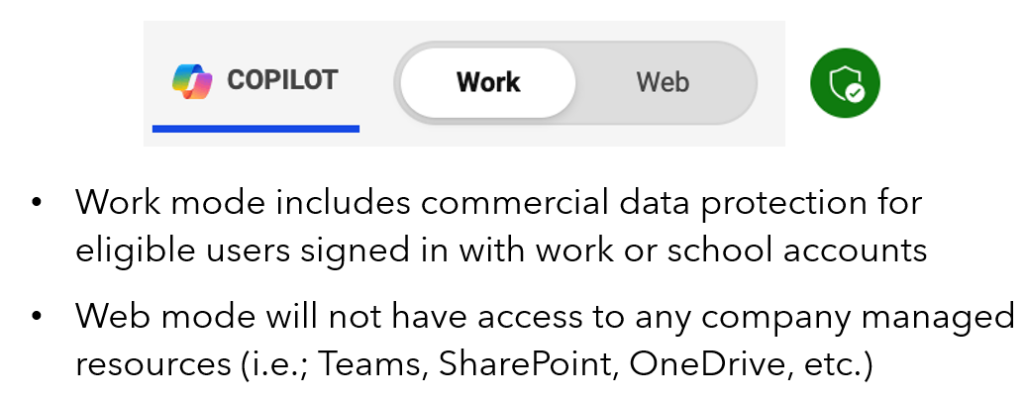
Work Mode
Work Mode uses:
- Outlook
- Teams
- SharePoint
- OneDrive
- Meetings
- Documents
Think:
“Copilot, help me with my stuff.”
Best For
- Internal projects
- Meeting preparation
- Executive briefings
- Company information
Web Mode
Web Mode uses:
- Public web information
Think:
“Copilot, go find stuff out there.”
Best For
- Research
- Industry trends
- Competitive analysis
- Public information
A simple rule:
Use Work Mode when you need organizational context.
Use Web Mode when you need internet (or) external to your workspace context.
Beyond Chat: Advanced Copilot Experiences
Many users stop at Copilot Chat.
The real power begins when you explore the newer capabilities.
Copilot Search
Search across:
- People
- Files
- Emails
- Meetings
- Chats
- SharePoint sites
using natural language.
Example:
Find everything related to Project Alpha.
Copilot Pages
Collaborative AI workspaces for developing ideas and content.
Best for:
- Workshops
- Brainstorming
- Project planning
Copilot Notebooks
Think of these as AI-powered project workspaces.
Best for:
- Long-term initiatives
- Research projects
- Organized knowledge management
Researcher Agent
Designed for:
- Multi-source research
- Industry analysis
- Competitive intelligence
- Comprehensive reports
Analyst Agent
Designed for:
- Financial data
- Contracts
- Reports
- Spreadsheets
- Structured analysis
These tools move Copilot beyond chat and into specialized productivity workflows.
Which Copilot Experience Should You Use?
Executives
Start with:
- Copilot Chat
- Outlook
- Teams
Managers
Start with:
- Teams
- Outlook
- Word
Finance
Start with:
- Excel
- Analyst
- Copilot Chat
Project Managers
Start with:
- Teams
- Copilot Chat
- PowerPoint
Consultants
Start with:
- Copilot Chat
- Researcher
- PowerPoint
- Word
My Recommendation
If you are new to Microsoft Copilot, begin here:
Step 1
Use Microsoft 365 Chat in the browser.
Step 2
Learn Work Mode and Web Mode.
Step 3
Use Outlook and Teams daily.
Step 4
Experiment with Word, Excel, and PowerPoint.
Step 5
Explore Notebooks, Researcher, and Analyst.
This progression provides the fastest path to productivity.
Final Thoughts
The biggest mistake people make with Copilot is treating it like a single application.
It is not.
Copilot is an AI layer woven throughout the Microsoft ecosystem.
The more entry points you understand, the more value you unlock.
For most professionals:
- Microsoft 365 Chat
- Teams
- Outlook
will provide 80% of the value.
For power users:
- Notebooks
- Researcher
- Analyst
- Pages
are where transformation begins.
The future of work is not about finding Copilot. It is about understanding where Copilot can help you most.