Generative AI Studio in Vertex AI: A Walkthrough for Non-Technical Executives

How Business Leaders Can Explore, Prototype, and Understand Generative AI Without Writing Code
Generative AI is rapidly becoming one of the most important technologies shaping modern business. But for many executives and business leaders, the challenge is not understanding why AI matters — it is understanding how to actually experience it without needing a data science background or machine learning expertise.
That is where Google Vertex AI Studio becomes incredibly valuable.
Vertex AI Studio provides a low-code and no-code environment where users can:
- experiment with generative AI,
- prototype business ideas,
- design prompts,
- test AI conversations,
- summarize documents,
- generate content,
- and explore multimodal AI experiences.
This guide provides a practical walkthrough of Vertex AI Studio for non-technical executives, managers, consultants, and business professionals looking to better understand how generative AI can support business transformation.
What Is Vertex AI Studio?
Vertex AI Studio is part of Google Cloud’s Vertex AI platform.
It provides a visual interface for interacting with generative AI models such as:
- Gemini,
- text models,
- multimodal models,
- conversational AI systems,
- and prompt engineering workflows.
Google describes Vertex AI as a unified platform for building, deploying, and scaling AI applications and machine learning workflows.
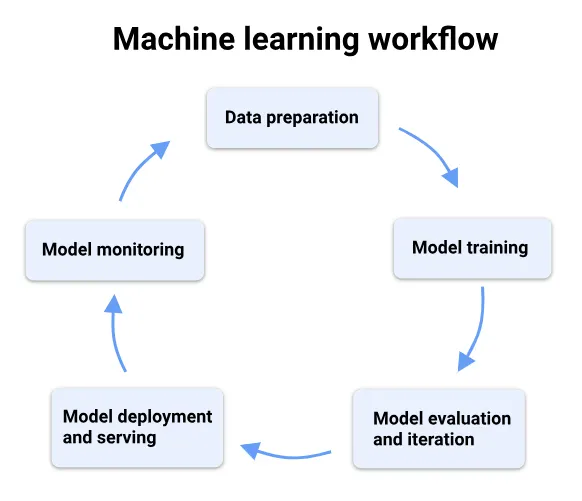
Vertex AI Studio specifically focuses on:
- prompt experimentation,
- model interaction,
- rapid prototyping,
- and generative AI application development.
In simple terms:
Vertex AI Studio allows business users to interact with enterprise-grade generative AI models without needing to write code.
Vertex AI Studio on Google Cloud
Vertex AI Studio is a Google Cloud console tool for rapidly prototyping and testing generative AI models. The following diagram shows a high level overview of the Generative AI workflow.
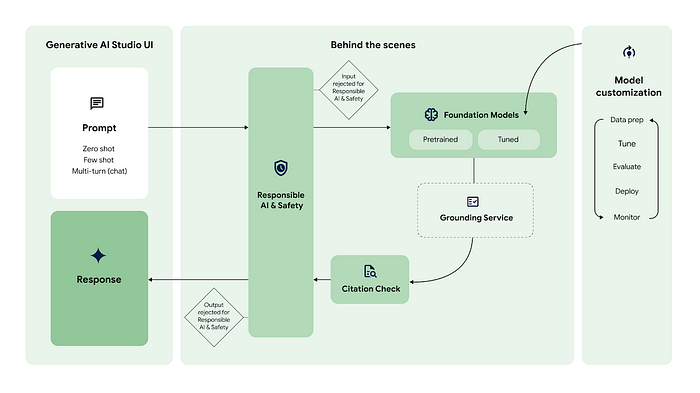
You can access the Generative AI Studio (or) Vertex AI Studio from Google’s Cloud console by searching “Vertex AI Studio” or via the link
Vertex AI Studio

You can test sample prompts, design your own prompts, and customize foundation models to handle tasks that meet your application’s needs without any technical knowledge, including the following:
- Test models using prompt samples.
- Design and save your own prompts.
- Tune a foundation model.
- Convert between speech and text.
Language
There are two ways to access the Language offerings from Generative AI Studio on Google Cloud:
- Click the OPEN button at the bottom of the Language box on the Generative AI Studio Overview page.
- Click Language from the menu on the left under Generative AI Studio tab.

Upon clicking, the following page will be presented.

Get Started
Create Prompt
Create Prompt lets you designs prompts for tasks relevant to your business use case including code generation. To get started, click on the + TEXT PROMPT button as shown in the image below

Upon clicking, you will be redirected to the following page. You can hover or click on ? buttons to find out more about each field and parameter. Also, the following image has been annotated to provide a quick overview of the interface.

You can feed your desired input text, e.g. a question, to the model. The model will then provide a response based on how you structured your prompt. The process of figuring out and designing the best input text (prompt) to get the desired response back from the model is called Prompt Design.
Currently, there is no best way to design the prompts yet. Generally, there are 3 methods that you can use to shape the model’s response in a way that you desired.
- Zero-shot prompting — This is a method where the LLM is given no additional data on the specific task that it is being asked to perform. Instead, it is only given a prompt that describes the task. For example, if you want the LLM to answer a question, you just prompt “what is prompt design?”.
- One-shot prompting — This is a method where the LLM is given a single example of the task that it is being asked to perform. For example, if you want the LLM to write a poem, you might give it a single example poem.
- Few-shot prompting — This is a method where the LLM is given a small number of examples of the task that it is being asked to perform. For example, if you want the LLM to write a news article, you might give it few news articles to read.
You may also notice the FREE-FORM and STRUCTURED tabs in the image above. Those are the two modes that you can use while designing your prompt.
- FREE-FORM — This mode provides a free and easy approach to design your prompt. It is suitable for small and experimental prompts with no additional examples. You will be using this to explore zero-shot prompting.
- STRUCTURED — This mode provides an easy-to-use template approach to prompt design. Context and multiple examples can be added to the prompt in this mode. This is especially useful for one-shot and few-shot prompting methods which you will be exploring later.
FREE-FORM mode
You will try zero-shot prompting in FREE-FORM mode. To start,
- copy “What is a prompt gallery?” over to the prompt input field
- click on the SUBMIT button on the right side of the page
The model will respond a comprehensive definition of the term prompt gallery.

Here are a few exploratory exercises for you to explore.
- adjust the Token limit parameter to 1 and click the SUBMIT button
- adjust the Token limit parameter to 1024 and click the SUBMIT button
- adjust the Temperature parameter to 0.5 and click the SUBMIT button
- adjust the Temperature parameter to 1.0 and click the SUBMIT button
Inspect if how the responses change as to change the parameters?
STRUCTURED mode
With STRUCTURED mode, you can design prompts in more organized ways. You can also provide Context and Examples in their respective input fields. This is a good opportunity to learn one-shot and few-shot prompting.
In this section, you will ask the model to complete a sentence. Go back to the Text Prompt window and
- click on the STRUCTURED tab if you have not
- copy “the colour of the sky is” in INPUT field
- click on the SUBMIT button on the right side of the page
You would see a similar result as shown in the image below.

Instead of completing the sentence, the model gave a full sentence as a response which is not what we wanted. You can try to influence the model’s response with one-shot prompting. This time around you will add an example for the model to based its output from.
Under Examples field,
- copy “the colour of the grass is” to the INPUT field
- copy “green” to the OUTPUT field
- click on the SUBMIT button on the right side of the page.
Now the model will respond to complete the sentence instead. The response should be something similar to this.

Congrats! You have successfully influenced the way the model produces response.
For the next task, you will use the model to perform sentiment analysis on a sentence, such as determining whether a movie review is positive or negative. Go back to the Text Prompt window and
- copy the prompt “It was a time well spent!” over to the INPUT field
- click on the SUBMIT button on the right side of the page

As you can see, the model did not have enough information to know whether you were asking it to do sentiment analysis. This can be improved by providing the model with a few examples of what you are looking for.
Try adding these examples as shown in the image below:
INPUT : A well-made and entertaining film
OUTPUT : positive
INPUT : I fell asleep after 10 minutes
OUTPUT : negative
INPUT : The movie was ok
OUTPUT : neutral
and click on the SUBMIT button on the right side of the page

The model will now responds the way you wanted. It should respond as positive.
You can also save the newly designed prompt. To save the prompt, click on SAVE button and name it anyway you like.

The saved prompt will appear at the MY PROMPTS tab.

Create Chat Prompt
Go back to the Language page and click on the + TEXT CHAT button to create a new chat prompt.

You will see the new chat prompt page. It’s relatively similar to the new prompt page that you went through earlier.

For this section, you will add context to the chat and let the model respond based on the context provided. Let’s add these contexts to the Context field.
- copy these context to Context field
Your name is Roy.
You are a support technician for an IT department.
You only respond with “Have you tried turning it off and on again?” to any queries. - copy “my computer is so slow” to the chatbox and
- press Enter key or click the send message button (the right arrow-head button)
The model would consider the provided additional context and answer the questions within the constraints.
Prompt Gallery
Prompt Gallery lets you explore how generative AI models can work for a variety of use cases. There are a variety of topics: Summarization, Classification, Extraction, Writing, and Ideation for you to explore. Head back to the Get Started page and explore them at your own pace.
Test models using prompt samples
Prompt Gallery, in the Language section of Vertex AI Studio, contains a variety of sample prompts that are predesigned to help demonstrate model capabilities. The sample prompts are categorized by the task type, such as summarization, classification, and extraction. Each prompt is preconfigured with a specified model and parameter values so you can just open the sample prompt and click Submit to get the model to generate a response.
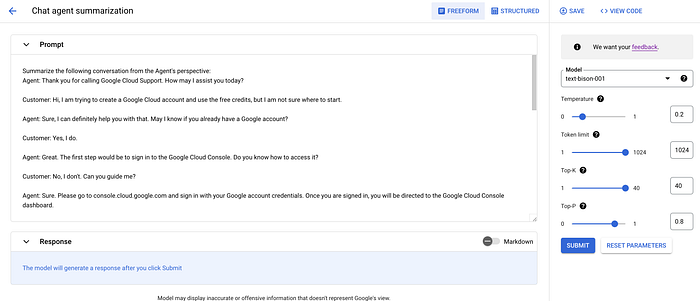
Design and save your own prompts
Prompt design is the process of manually creating prompts that elicit the desired response from a language model. By carefully crafting prompts, you can nudge the model to generate a desired result. Prompt design can be an efficient way to experiment with adapting a language model for a specific use case.
You can create and save your own prompts in Vertex AI Studio. When creating a new prompt, you enter the prompt text, specify the model to use, configure parameter values, and test the prompt by generating a response. You can iterate on the prompt and its configurations until you get the desired results. When you are done designing the prompt, you can save it in Vertex AI Studio.
Response citations
If you are using a text model in Vertex AI Studio like text-bison, you receive text responses based on your input. Our features are intended to produce original content and not replicate existing content at length. If Vertex AI Studio quotes at length from a web page, it cites that page in the output.
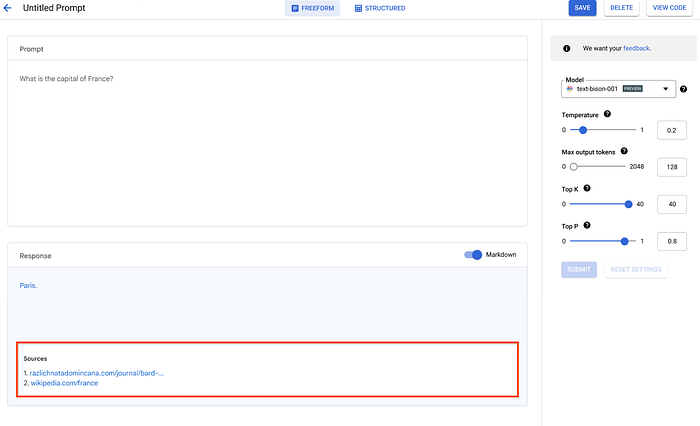
You can change the quality of responses by tweaking the temperature (output randomness), and experimenting with other response parameters in Vertex AI Studio.
Why Vertex AI Matters for Executives
Most executives are not trying to build neural networks.
What they do want is to understand:
- What can generative AI actually do?
- How can it improve productivity?
- What business workflows can it automate?
- How can teams prototype AI use cases quickly?
- What are the risks and limitations?
- How can AI support decision-making?
Vertex AI Studio provides a practical environment to explore these questions.
The Shift From AI Theory to AI Prototyping
Traditional AI discussions often remain conceptual:
- “AI will transform business.”
- “AI will improve productivity.”
- “AI will automate workflows.”
Vertex AI Studio changes the conversation from theory to experimentation.
Executives can:
- test prompts,
- create assistants,
- summarize reports,
- analyze documents,
- simulate customer interactions,
- and prototype AI use cases within minutes.
This hands-on experience dramatically improves understanding and adoption readiness.
Core Capabilities of Vertex AI Studio
Vertex AI Studio supports several high-value business scenarios.
Prompt Engineering
Users can design and test prompts interactively.
Examples:
- executive summaries,
- document analysis,
- meeting preparation,
- customer support scenarios,
- strategic planning prompts,
- brainstorming workflows.
Prompt engineering becomes one of the most important business skills when working with generative AI.
Conversational AI
Vertex AI Studio supports chat-based AI experiences where users can:
- simulate customer interactions,
- test support bots,
- create internal assistants,
- prototype conversational workflows.
This is useful for:
- customer service,
- employee support,
- onboarding,
- knowledge management,
- and training scenarios.
Content Generation
The platform can generate:
- reports,
- summaries,
- presentations,
- emails,
- blog drafts,
- interview questions,
- policy drafts,
- marketing content,
- and strategic documentation.
Document Summarization
Executives can upload or reference large documents and ask the AI to:
- summarize,
- extract action items,
- identify risks,
- simplify technical content,
- compare options,
- or generate executive-ready outputs.
Multimodal AI
Vertex AI supports multimodal capabilities where AI can work across:
- text,
- images,
- audio,
- and other media types.
This opens the door for:
- visual analysis,
- image understanding,
- AI-powered media workflows,
- and enterprise automation scenarios.
Google documentation highlights Vertex AI’s support for multimodal Gemini models and generative AI workflows. (Google Cloud Documentation)
Understanding the Vertex AI Workflow
The typical workflow inside Vertex AI Studio is straightforward.
Step 1: Enter a Prompt
The user provides a natural language instruction.
Example:
“Summarize this financial report into five executive bullet points focusing on risks and recommendations.”
Step 2: Provide Context
The user can:
- upload files,
- reference content,
- provide examples,
- define tone,
- or specify output expectations.
Step 3: Select the Model
Users can choose available generative AI models depending on:
- task type,
- region,
- and capabilities.
Step 4: Generate Output
The AI processes the request and returns:
- summaries,
- drafts,
- analysis,
- responses,
- or generated content.
Step 5: Iterate and Refine
This is where the real value emerges.
Executives can:
- refine prompts,
- change tone,
- request additional detail,
- simplify language,
- or ask follow-up questions.
The process becomes collaborative and conversational.
The Most Important Skill: Prompt Engineering
The quality of the AI response depends heavily on the quality of the prompt.
This is true across:
- Vertex AI,
- ChatGPT,
- Microsoft Copilot,
- Claude,
- and other generative AI platforms.
A Simple Prompt Framework
Strong prompts usually contain four ingredients:
| Ingredient | Purpose |
|---|---|
| Goal | What outcome do you want? |
| Context | Why is this needed? |
| Source | What information should AI use? |
| Expectations | Tone, format, structure, length |
Weak Prompt
“Summarize this document.”
Strong Prompt
“Summarize this document into five executive bullet points focusing on risks, financial impact, and strategic recommendations for a leadership audience.”
The second prompt gives:
- audience,
- structure,
- context,
- and expected output style.
That dramatically improves results.
Common Prompting Techniques
Vertex AI Studio supports several practical prompting methodologies.
Zero-Shot Prompting
The AI receives a direct task with no examples.
Example:
“Summarize this customer complaint.”
Few-Shot Prompting
The user provides examples of expected outputs.
This helps:
- standardize formatting,
- improve consistency,
- and reduce ambiguity.
Multi-Turn Conversations
Users can continue refining outputs through conversational interaction.
Example:
- “Make this more concise.”
- “Rewrite for executives.”
- “Turn this into a presentation outline.”
- “Simplify for a non-technical audience.”
This iterative approach is one of the most powerful aspects of generative AI workflows.
High-Value Executive Use Cases
Vertex AI Studio becomes especially valuable when applied to practical business workflows.
Executive Summaries
Transform long reports into concise leadership briefings.
Example prompt:
“Summarize this quarterly business report into five executive insights and identify the top three risks.”
Meeting Preparation
Prepare for executive meetings using AI-generated briefings.
Example prompt:
“Prepare me for tomorrow’s client meeting using these notes and summarize key open issues.”
Financial Analysis
Analyze financial tables and identify trends.
Example prompt:
“Identify the key financial trends in this dataset and summarize major variances.”
Customer Service Prototyping
Prototype conversational AI experiences.
Examples:
- support bots,
- onboarding assistants,
- FAQ systems,
- help desk workflows.
Strategic Planning
Generate planning scenarios and frameworks.
Example prompt:
“Create a strategic roadmap for enterprise AI adoption across operations, finance, and customer support.”
Real-World AI Prototypes Executives Can Build
One of the biggest misconceptions about generative AI is that prototyping requires engineering expertise.
Vertex AI Studio enables rapid experimentation with:
- sentiment analyzers,
- AI-powered customer support assistants,
- summarization bots,
- document analysis tools,
- recommendation engines,
- and interactive AI experiences.
Executives can explore these use cases directly.
Security and Responsible AI
Executives should always understand:
- security,
- governance,
- privacy,
- and responsible AI implications.
Vertex AI operates within Google Cloud’s enterprise infrastructure and governance framework.
However, organizations should still:
- avoid exposing sensitive information unnecessarily,
- validate AI-generated outputs,
- establish governance policies,
- and maintain human oversight.
Important Limitations
Generative AI is powerful — but not perfect.
Executives should understand:
- AI can hallucinate.
- AI may produce inaccurate information.
- AI outputs require review.
- AI does not replace expertise.
- Prompt quality affects output quality.
- Human judgment remains essential.
A useful principle:
AI accelerates work — it does not replace accountability.
The Executive Mindset Shift
The most successful executives do not view generative AI as:
- a chatbot,
- a gimmick,
- or a replacement for people.
They view it as:
- a thinking accelerator,
- a research assistant,
- a productivity layer,
- a workflow enhancer,
- and a decision-support system.
That mindset shift is where transformation begins.
Best Practices for Non-Technical Executives
Start Small
Begin with:
- summaries,
- drafting,
- meeting prep,
- and brainstorming.
Use Real Business Content
The more realistic the context:
- the more meaningful the insights.
Iterate Frequently
Prompting is conversational.
Refine outputs continuously.
Focus on Business Workflows
The biggest value comes from:
- improving workflows,
- reducing friction,
- and accelerating decision-making.
Learn Through Experimentation
Hands-on exploration builds understanding faster than theory alone.
Final Takeaways
Vertex AI Studio provides a practical way for executives to:
- understand generative AI,
- experiment safely,
- prototype business ideas,
- and accelerate AI adoption readiness.
The key lessons are:
- You do not need to be technical to use generative AI effectively.
- Prompt engineering is the most important user skill.
- The best results come from clear context and iterative refinement.
- AI works best as a collaborator — not a replacement for expertise.
- Real transformation happens when AI becomes integrated into business workflows.